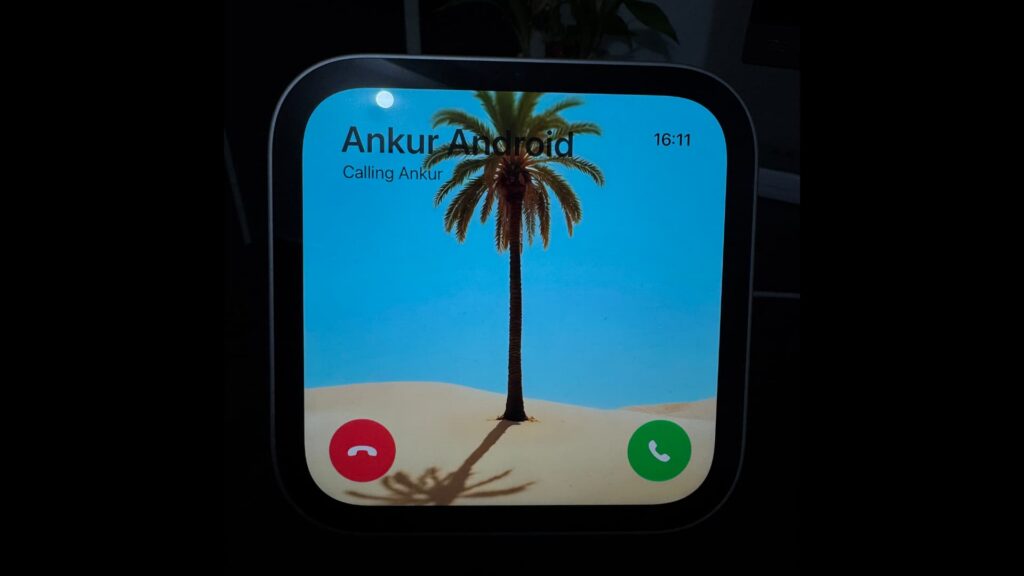
A guide published on November 20, 2026, describes how to stop incoming iPhone calls from appearing on HomeView if you’re concerned that someone nearby could see who’s calling.
According to the guide, a call appears on HomeView only when your iPhone is nearby and on the same Wi-Fi network, Personal Content is enabled, your user profile is selected, and HomeView can see your face. Those checks mean a call should not appear there while you’re away. But if you’re sitting near the 7-inch display, someone behind you may still see it.
Turn off incoming calls on HomeView
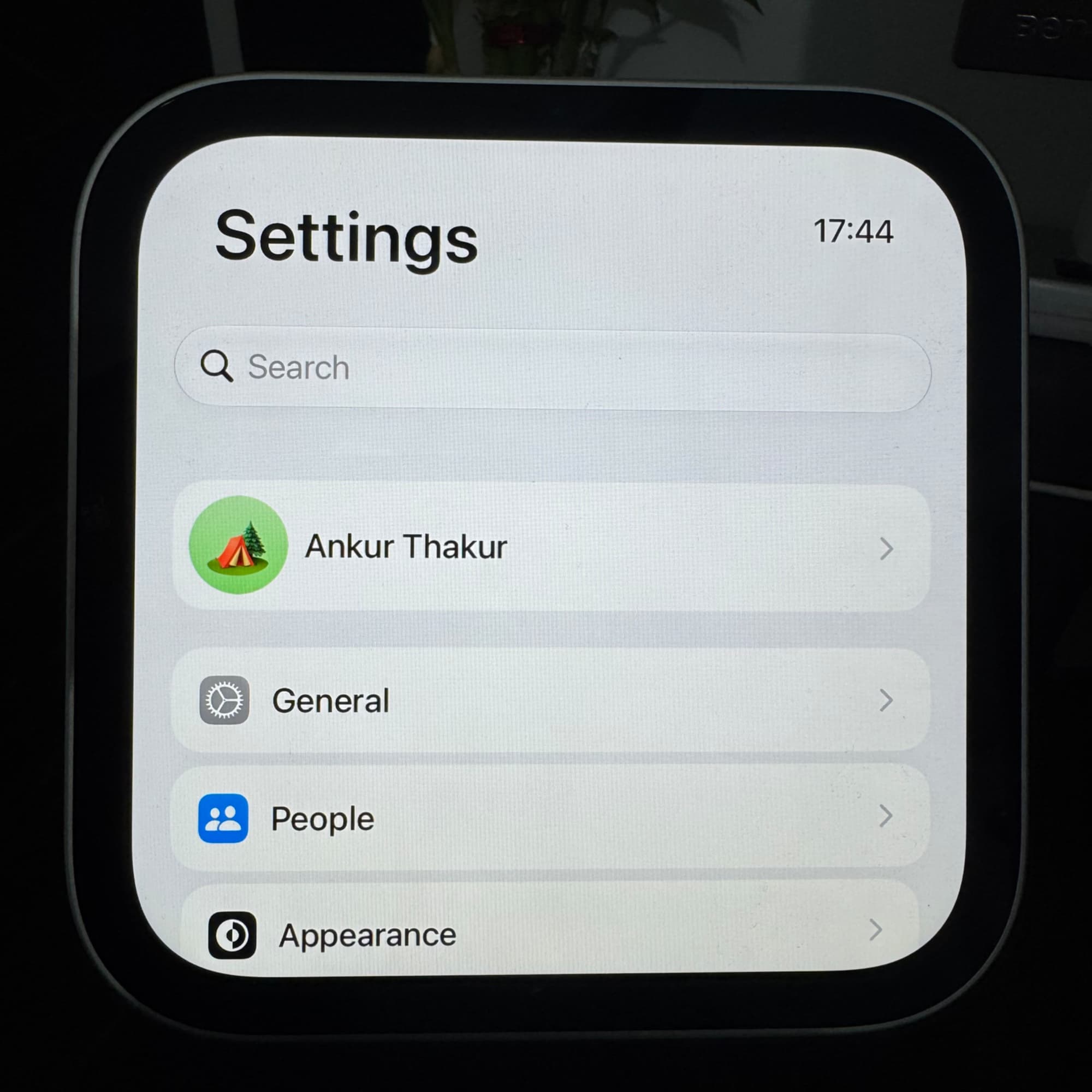
- Swipe up on the HomeView clock face to open the app drawer. Make sure your profile icon appears in the top-right corner, then open Settings.
- Tap your name at the top.
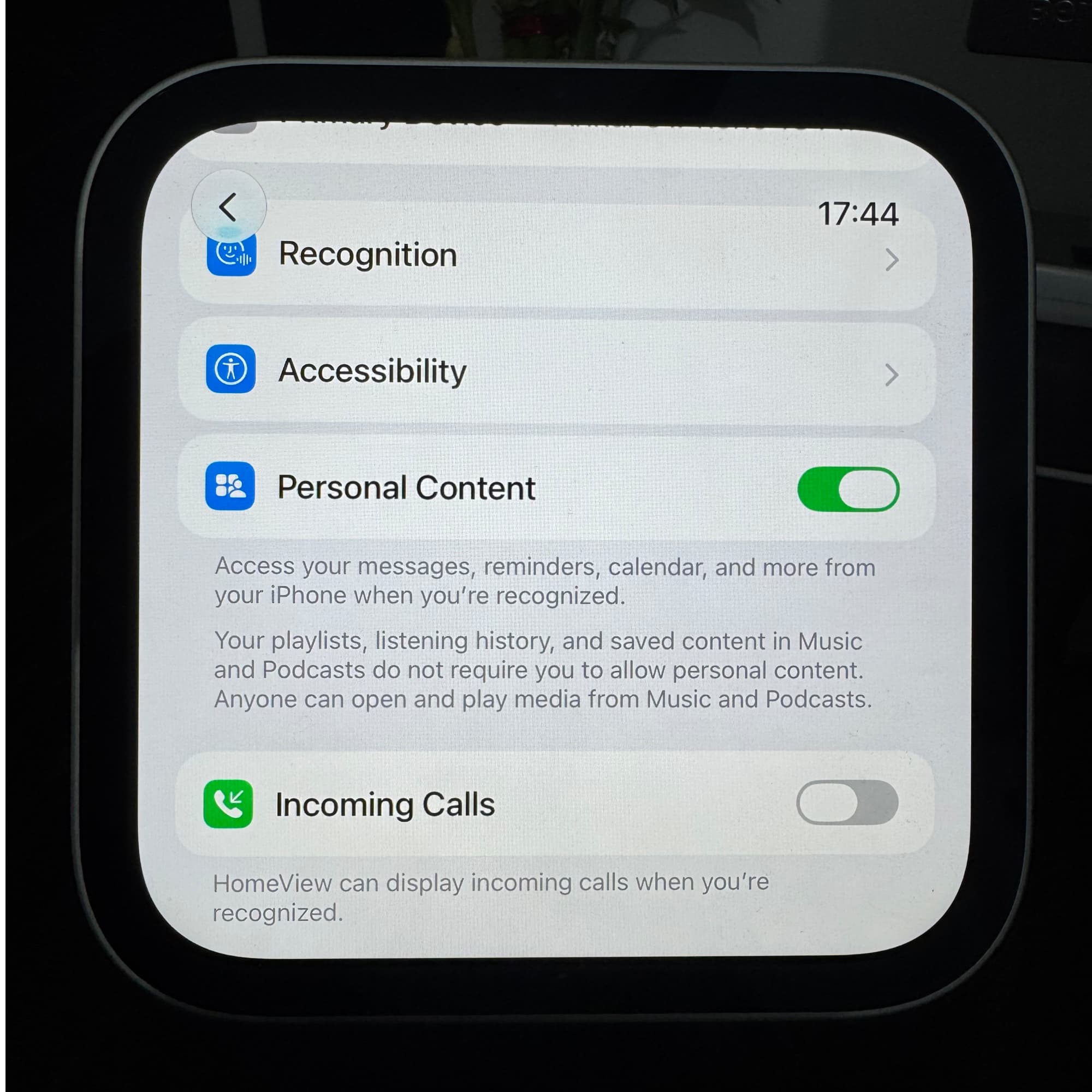
- Scroll down and turn off Incoming Calls.
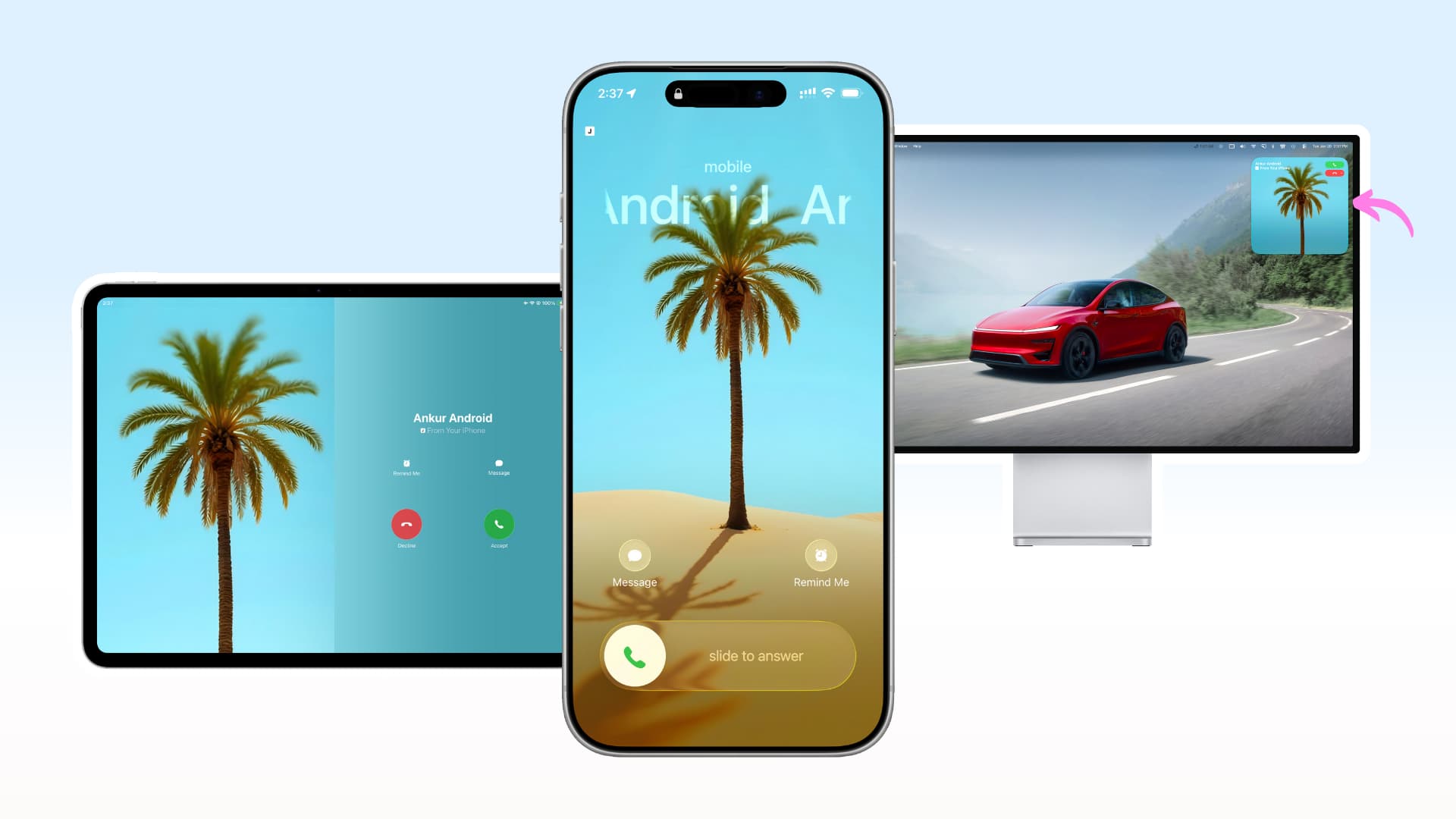
Calls will no longer appear on HomeView. They can still appear on your iPhone and on an iPad, Mac or Apple TV if you’ve enabled calls on those devices. The guide says this setting must be changed on HomeView, rather than under Settings → Apps → Phone → Calls on Other Devices on the iPhone.
If you can’t access HomeView
You can turn off Wi-Fi on your iPhone. Alternatively, use the iPhone’s Home app to turn off Personal Content:
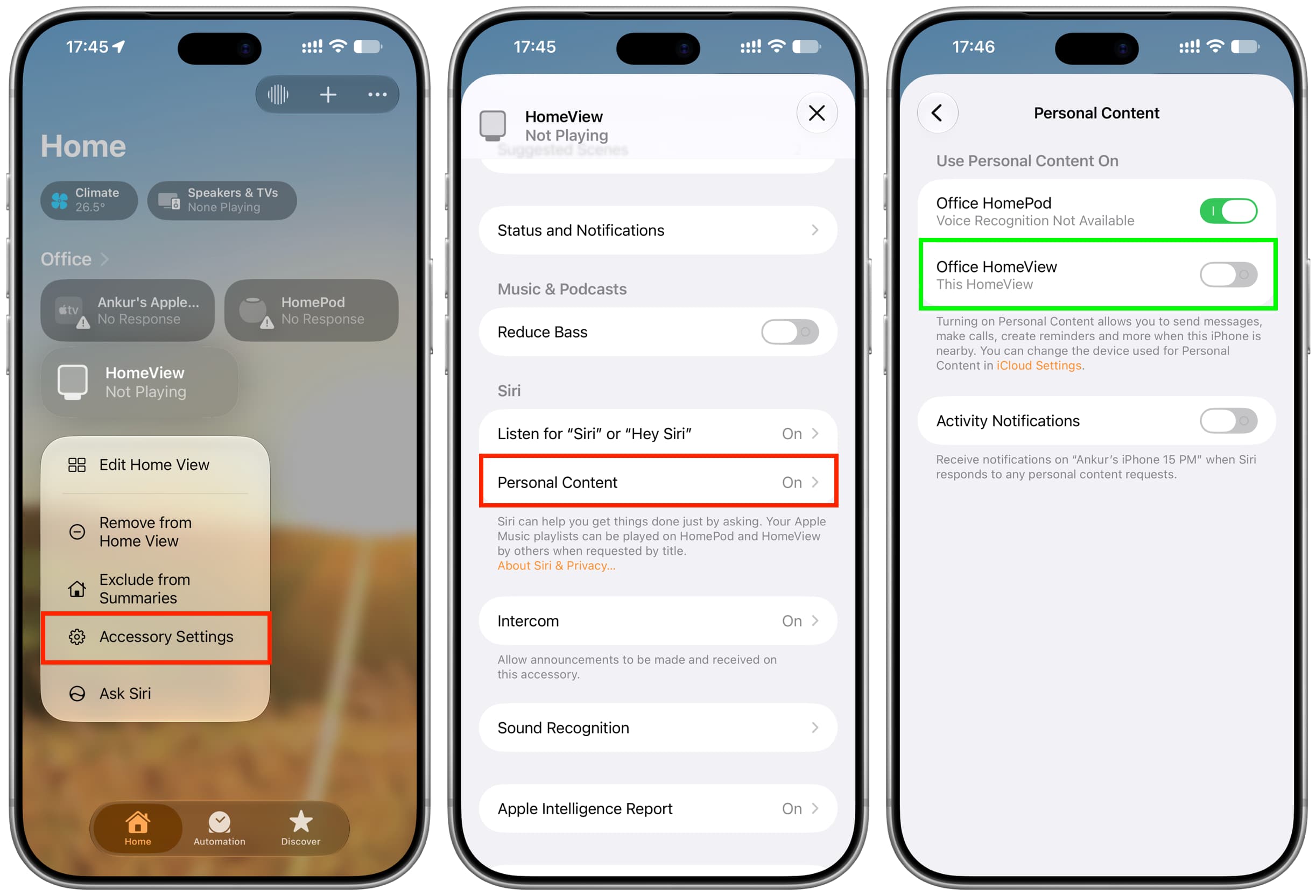
- Touch and hold the HomeView tile and select Accessory Settings.
- Scroll down and tap Personal Content.
- Turn off the switch next to your HomeView.
According to the guide, the Home app method works even when the iPhone and HomeView are not on the same Wi-Fi network, provided both have an internet connection through Wi-Fi or cellular data.