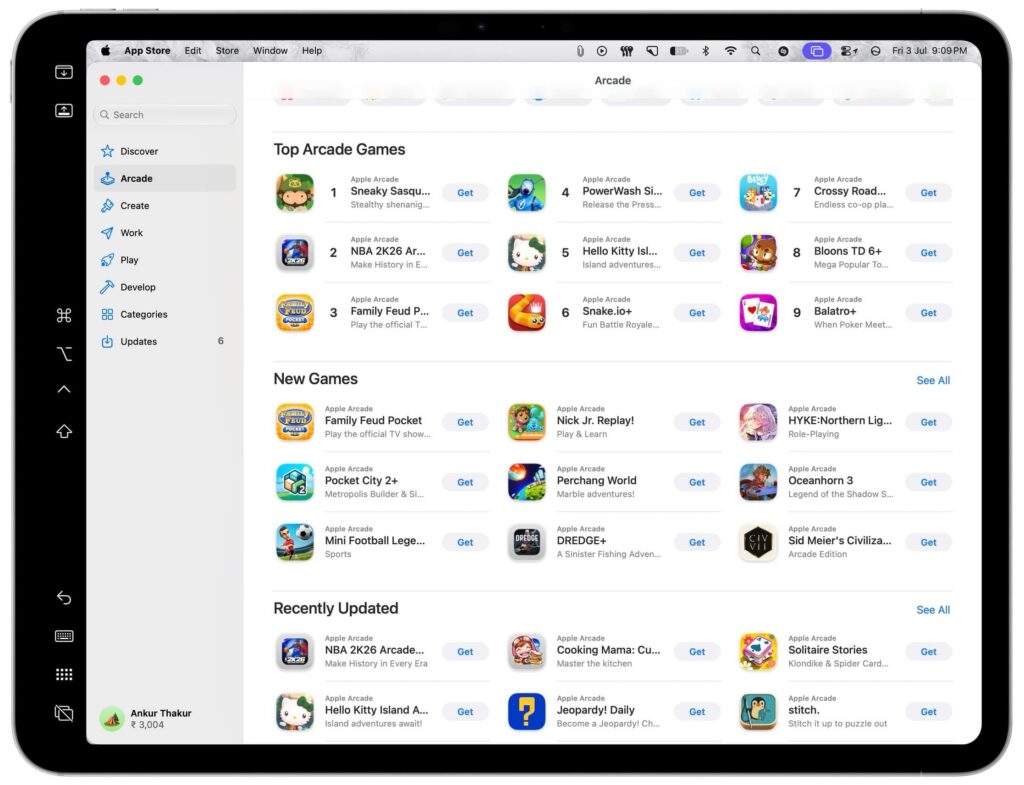
In a guide published November 12, 2026, iDownloadBlog reported that owners of the touchscreen MacBook Pro can disable finger input through macOS 27 Golden Gate’s accessibility settings.
- Open System Settings.
- Select Accessibility, then Touch under Physical and Motor.
- Turn on Ignore Touch Gestures.
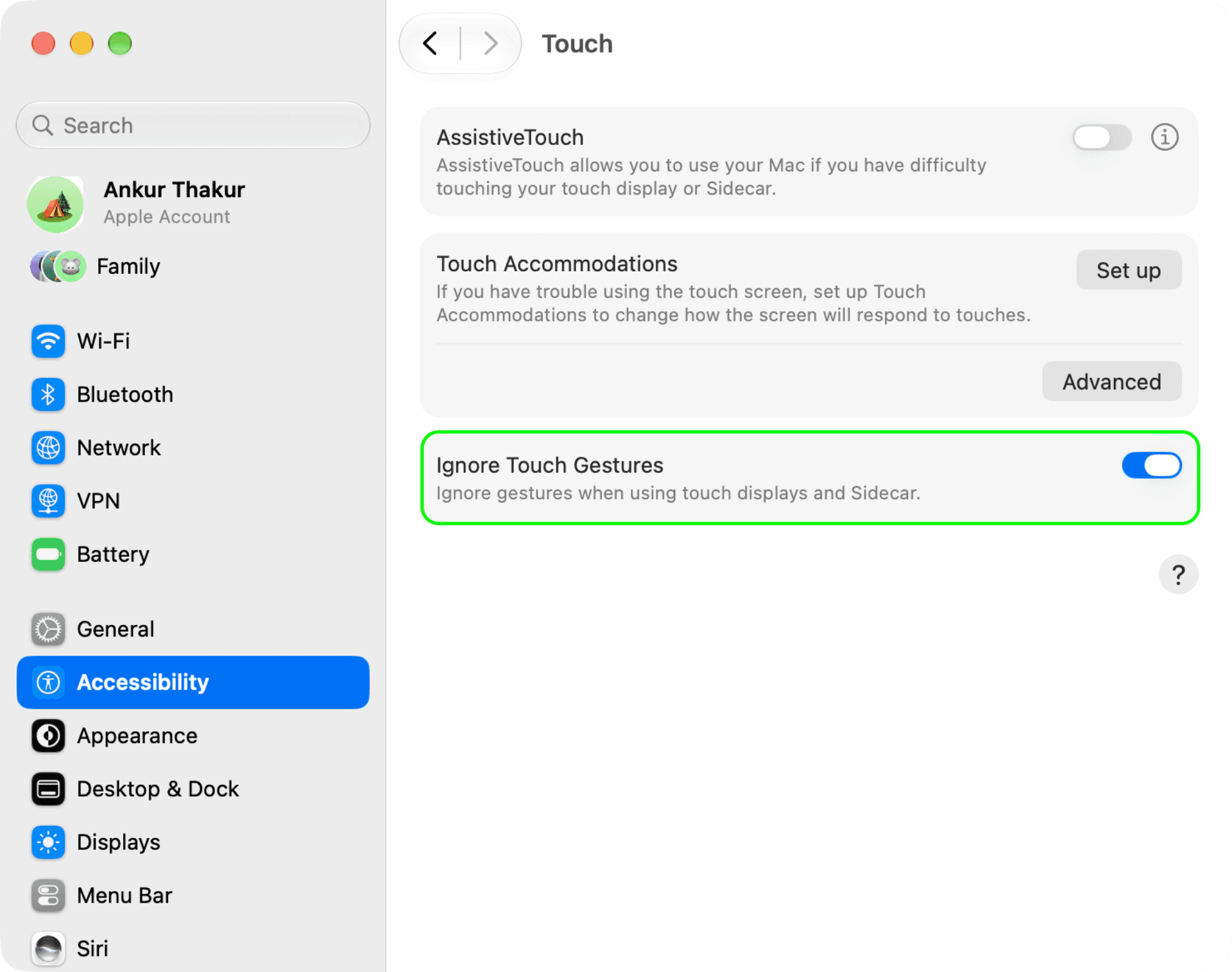
According to the guide, the setting stops the MacBook Pro screen from responding to finger taps, swipes and gestures. It also disables touch input on an iPad used as a secondary display through Sidecar, though you can still control the iPad display with the Mac pointer.
To restore touch input, return to the same settings and turn off Ignore Touch Gestures. The setting can also prevent accidental screen input while cleaning, but it does not lock the keyboard or trackpad.