
As reported on November 3, 2026, iOS 27.2, iPadOS 27.2 and macOS 27.2 Golden Gate let users edit captions added when sharing a batch of photos and comments posted under individual photos in upgraded iCloud Shared Albums. Previously, changing a comment meant deleting it and posting a new one.
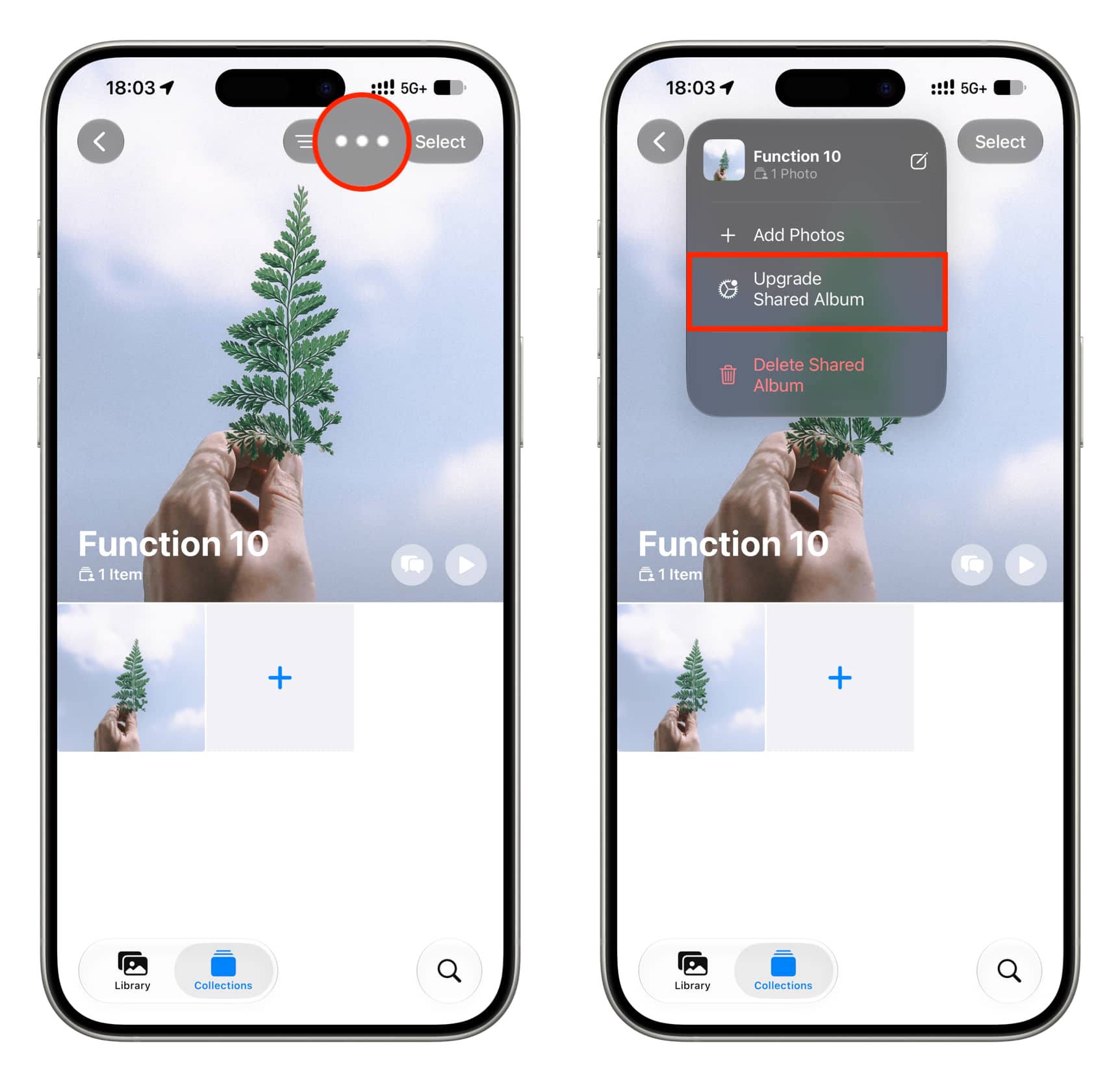
This works only in upgraded Shared Albums. These albums count against iCloud storage, support emoji reactions and require iCloud Photos to be set up on the device where the album is created. To upgrade an older album, open its three-dot menu and select Upgrade Shared Album.
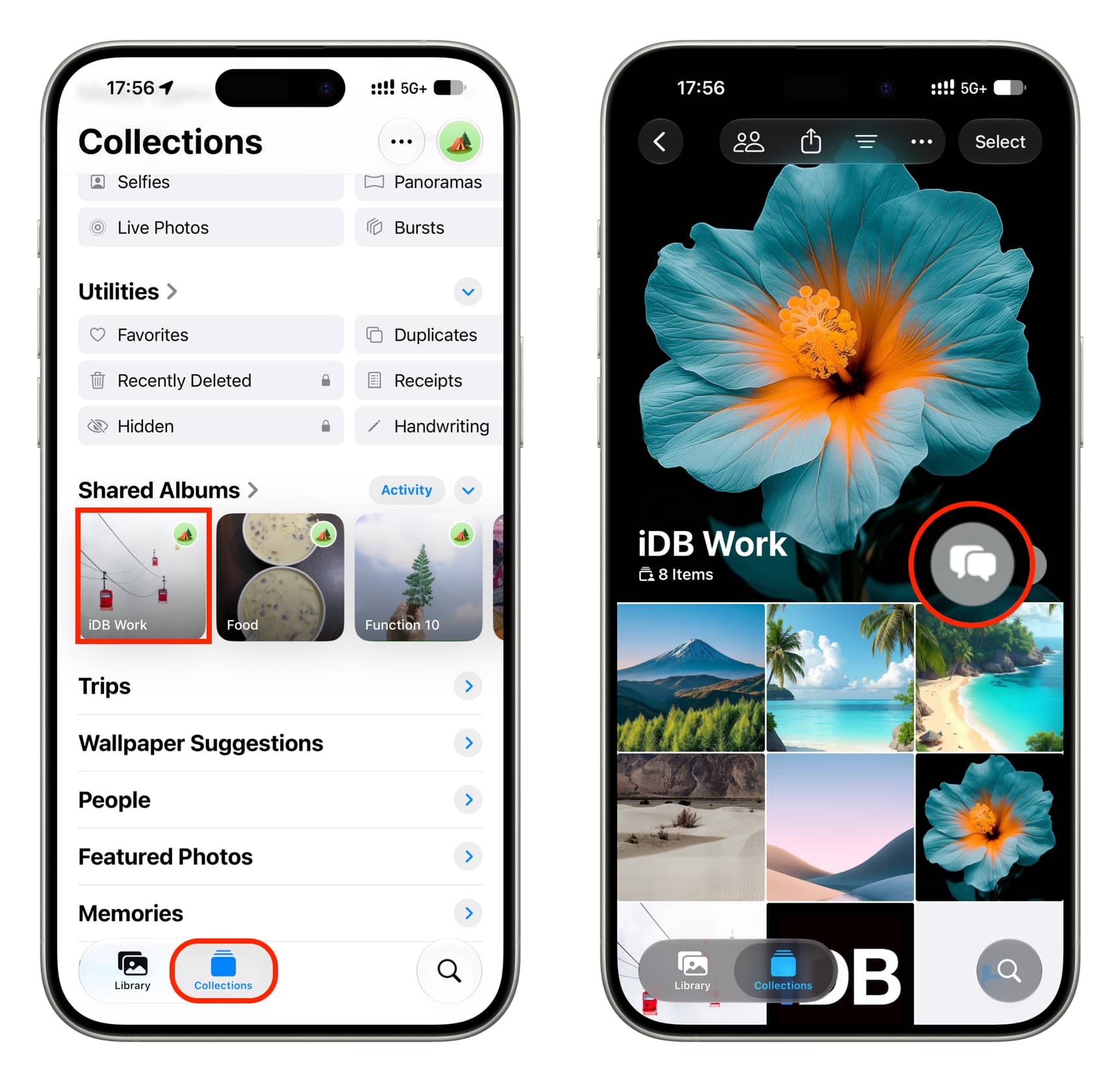
Edit a caption
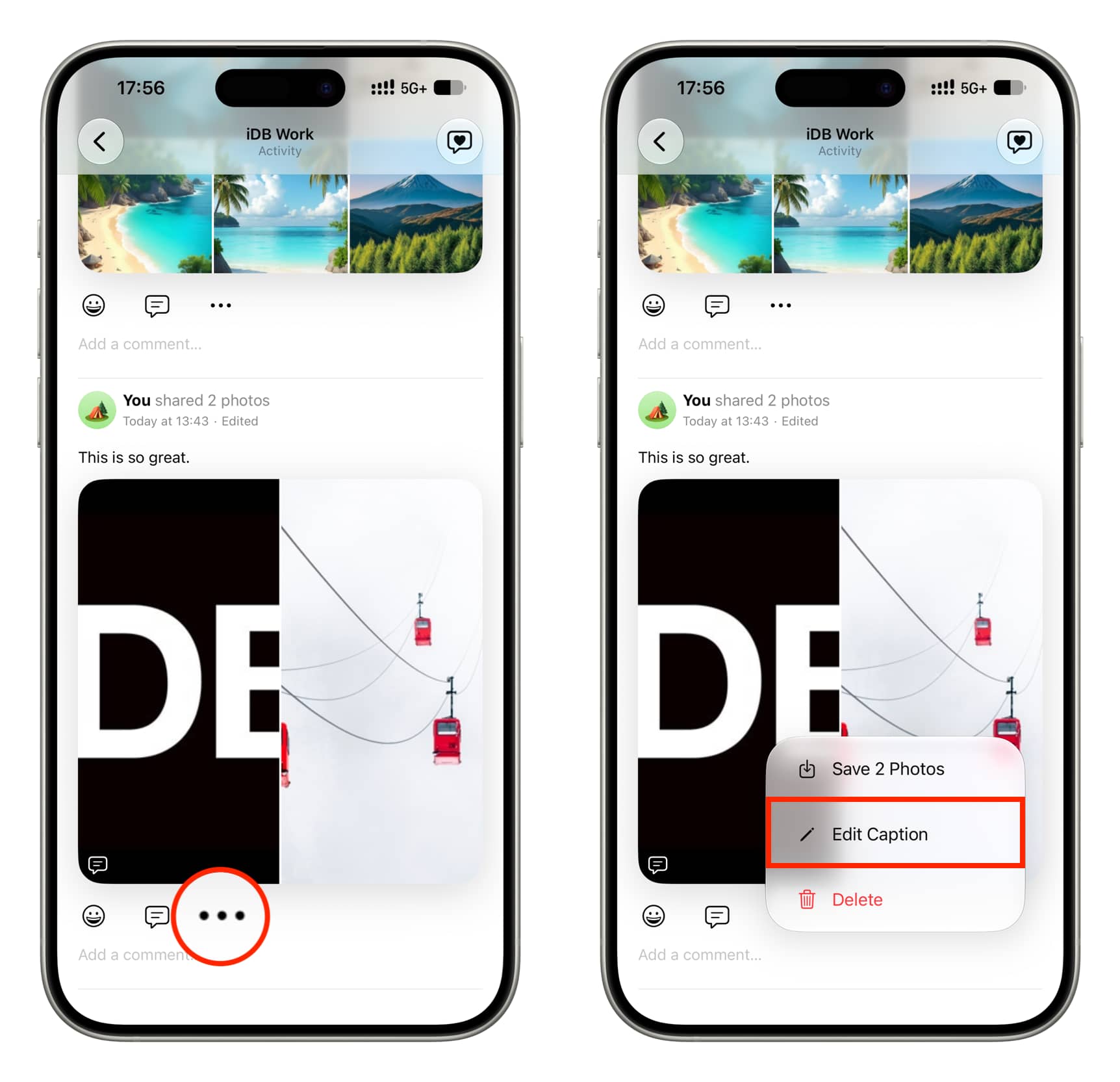
A caption belongs to an activity entry created when you add a batch of photos or videos. If you added items in several batches, find the entry for the batch you want to change.
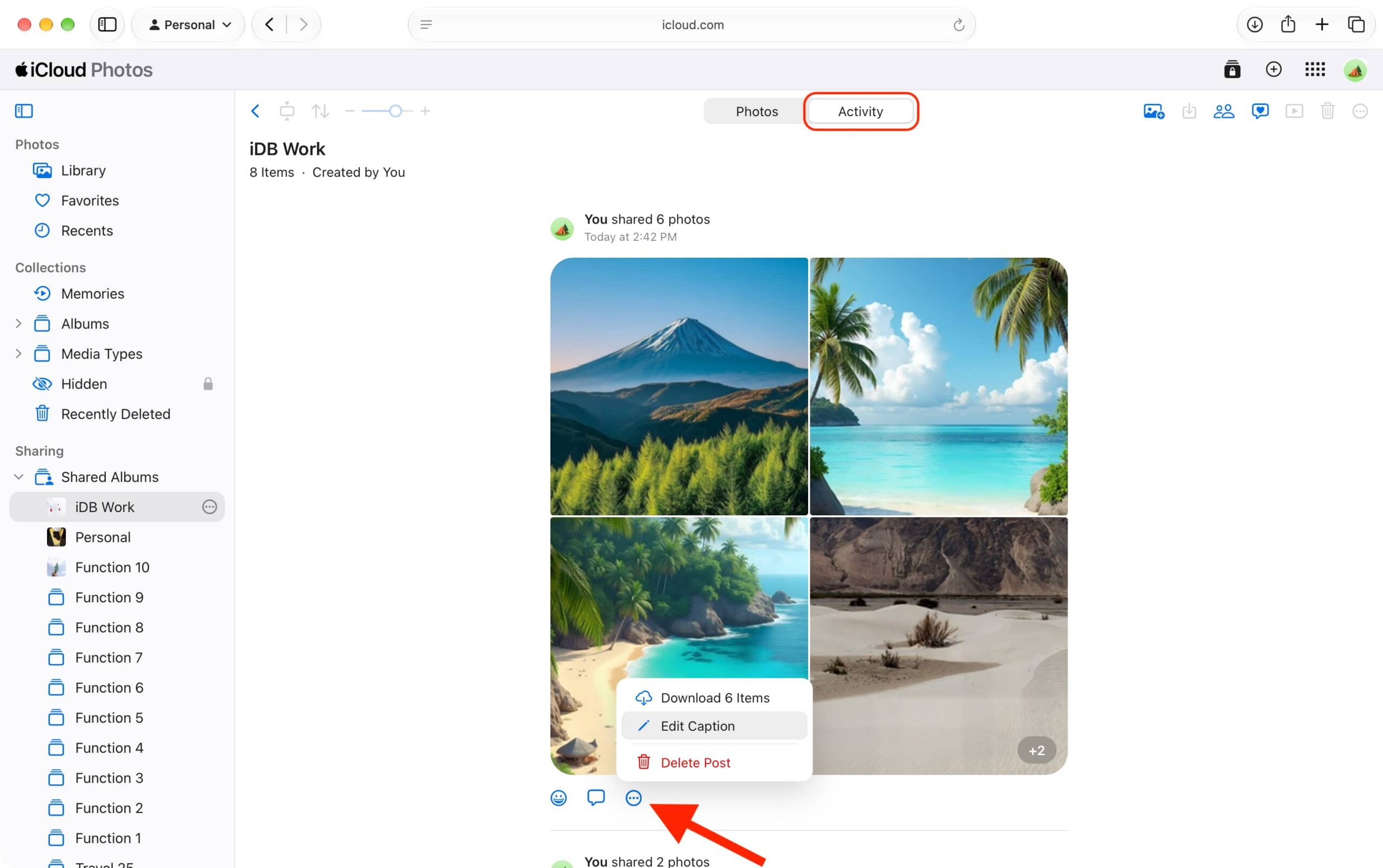
- iPhone or iPad: On iOS 27.2 or iPadOS 27.2 or later, open the shared album in Photos from the Collections tab. Tap the activity icon, find the relevant “You shared N photos” entry, then tap its three-dot menu and choose Edit Caption. Make the change and tap the checkmark. The entry will show an “Edited” label, but tapping it does not reveal the previous caption.
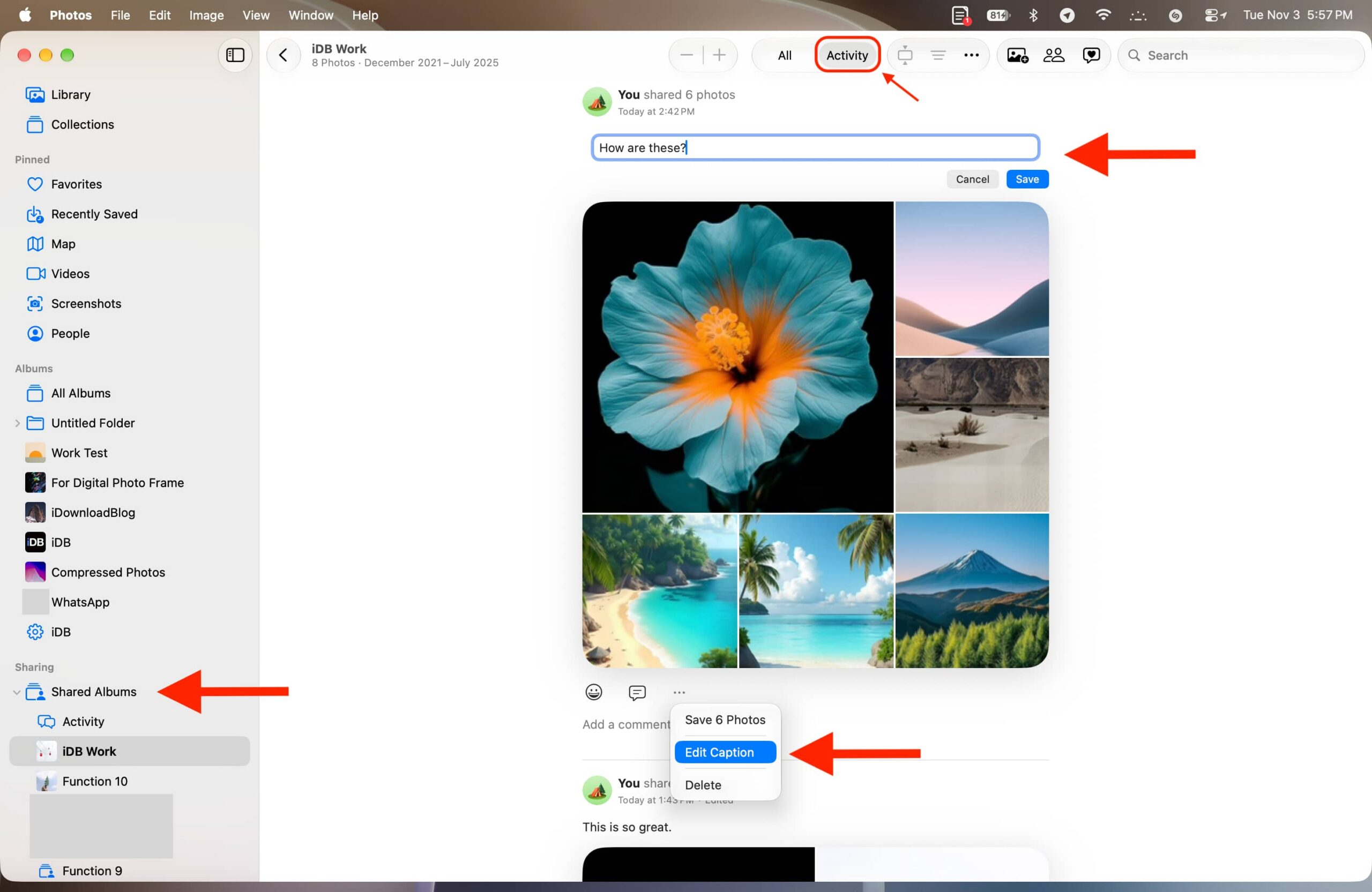
- Mac: On macOS 27.2 Golden Gate or later, open the album under Shared Albums in Photos. Click Activity, then the entry’s three-dot menu and Edit Caption. Click Save when finished.
- iCloud.com: Sign in at iCloud.com/photos, open a Shared Album and select the Activity tab. Use the entry’s three-dot menu to choose Edit Caption, then click Save.
Edit a photo comment
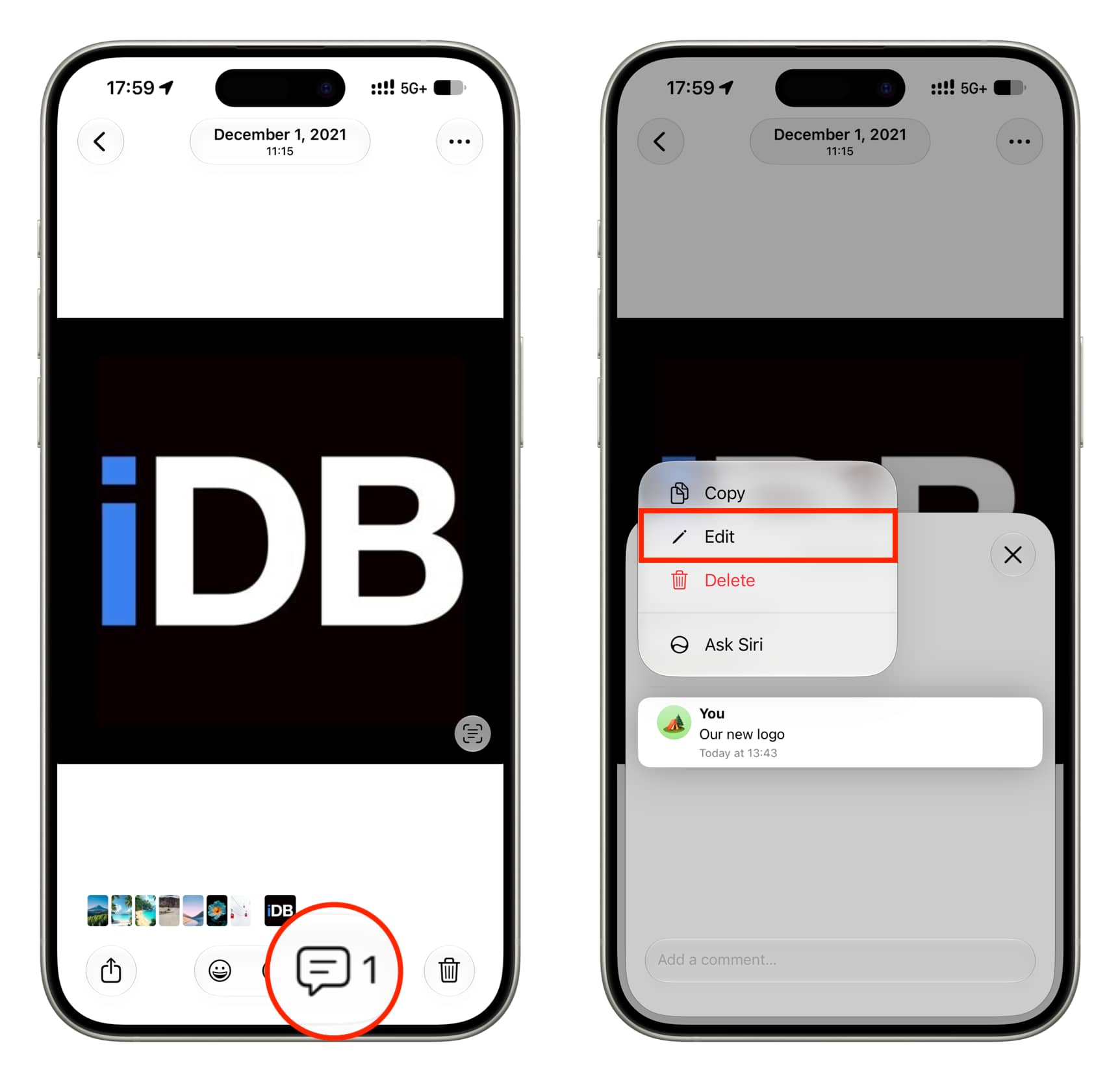
- iPhone or iPad: Open a photo in the shared album, tap the comment icon, then touch and hold your comment and select Edit. Tap the checkmark to save. To remove a comment instead, swipe left on it and tap the red trash icon; clearing all its text will not delete it.
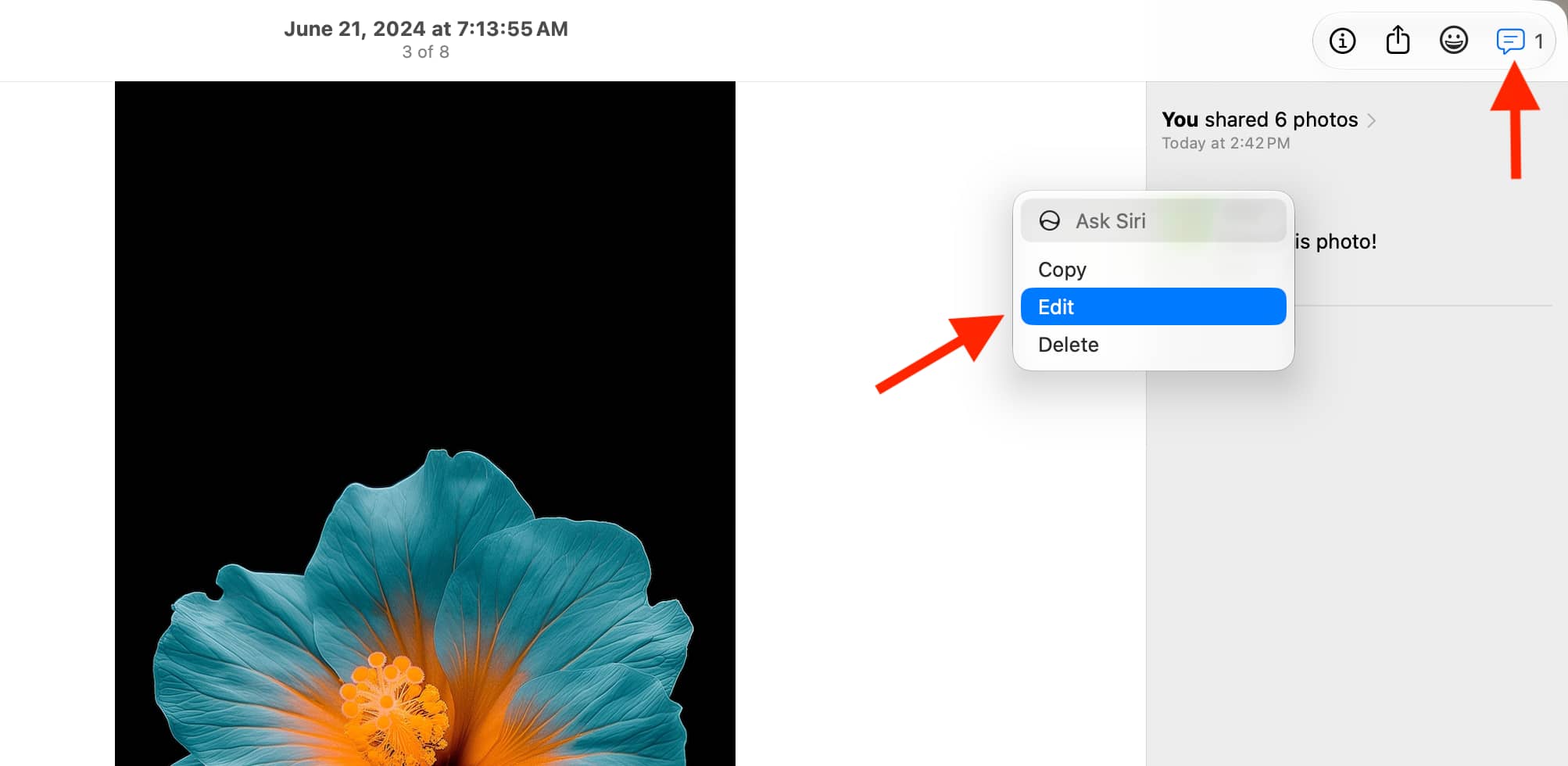
- Mac: Open a photo in the shared album, click the comment icon, Control-click your comment and select Edit. Click Save.
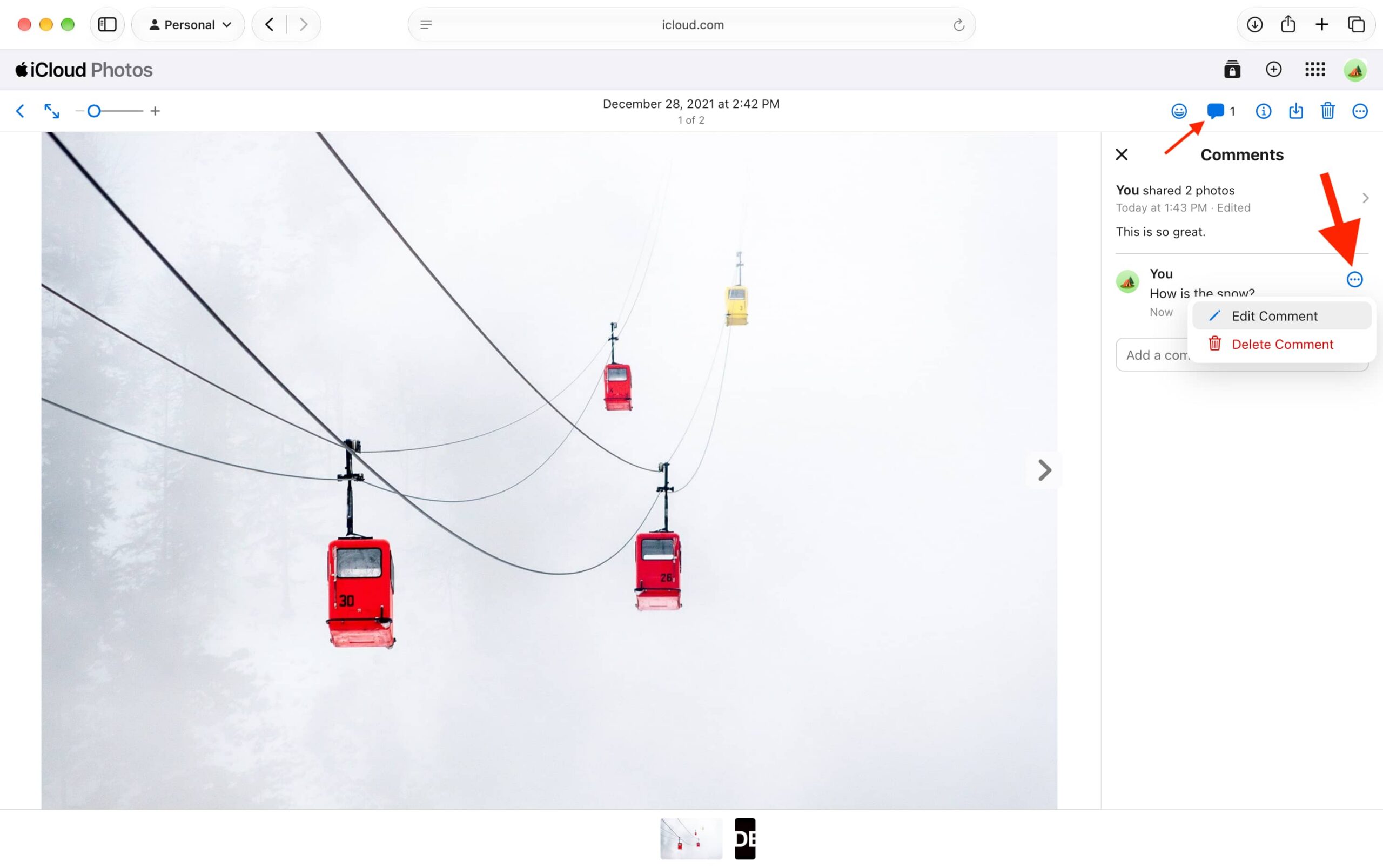
- iCloud.com: Open a photo in a Shared Album, click the comment icon, hover over your comment and use its three-dot menu to select Edit Comment. Click Save.
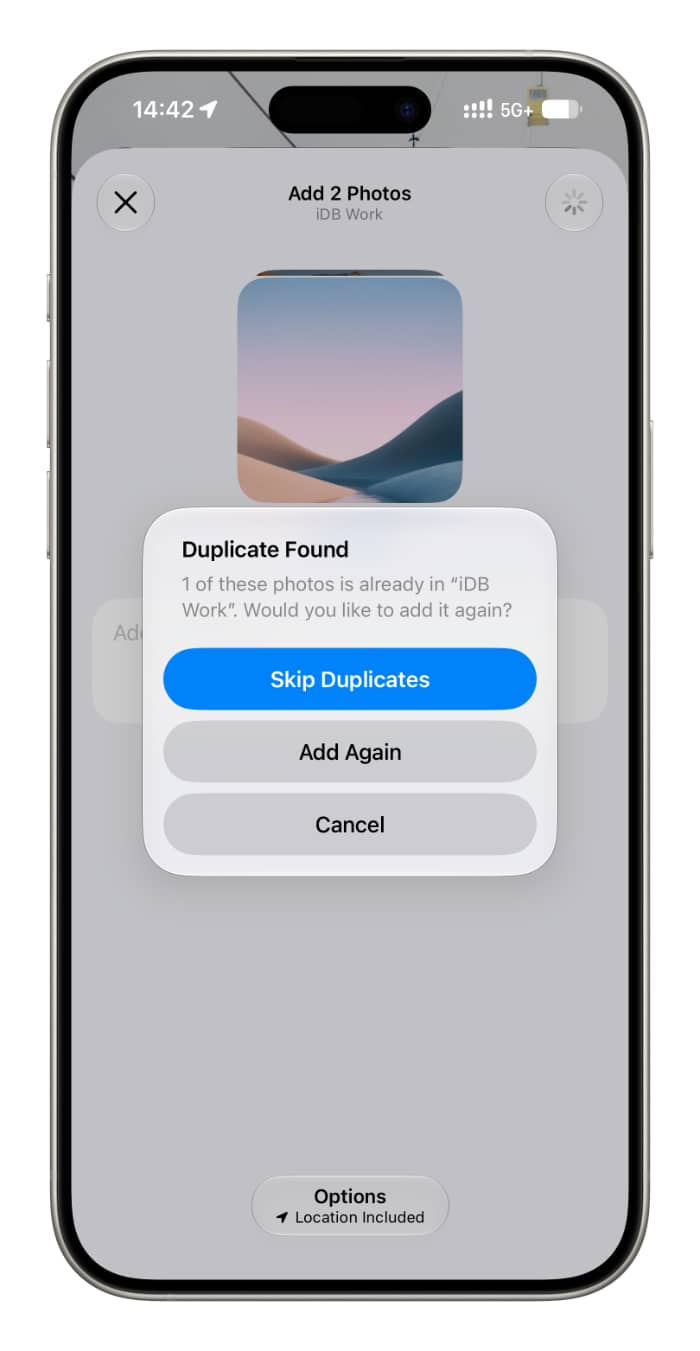
The report also notes that Apple’s 27.2 OS updates display a pop-up intended to prevent duplicate photos from being added to a shared album.