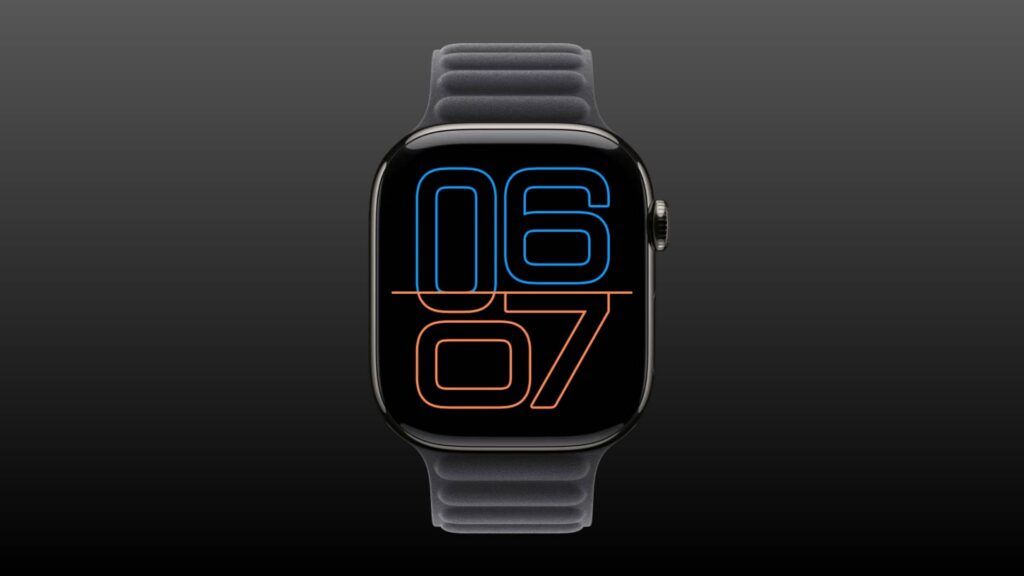
As of November 9, 2026, Apple Watch users could turn off the Always On display or choose what remains visible when their wrist is down. Turning it off may extend battery life; changing its settings can also keep notifications and activities, such as a running voice recording, off the dimmed screen.
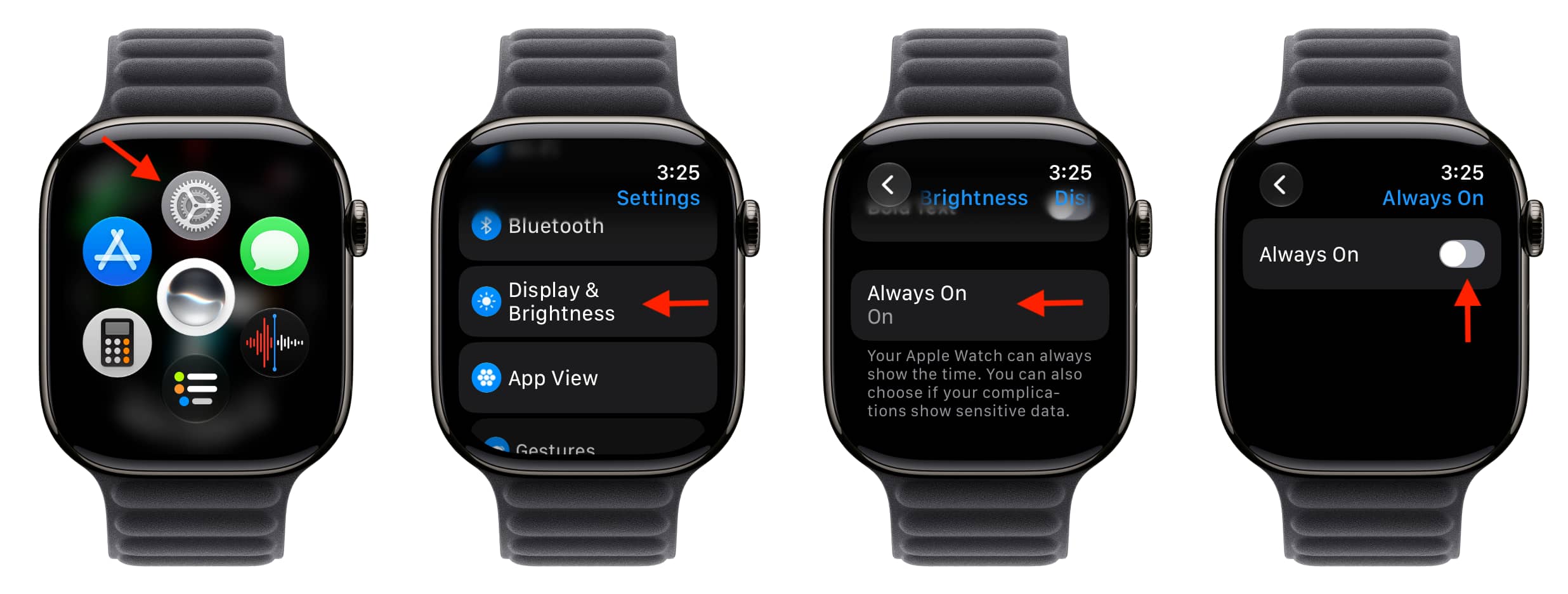
Turn off Always On
On the watch, open Settings → Display & Brightness → Always On, then switch Always On off. The screen will go black when you lower your wrist.
For a temporary change instead, enable Low Power Mode or Theater Mode.
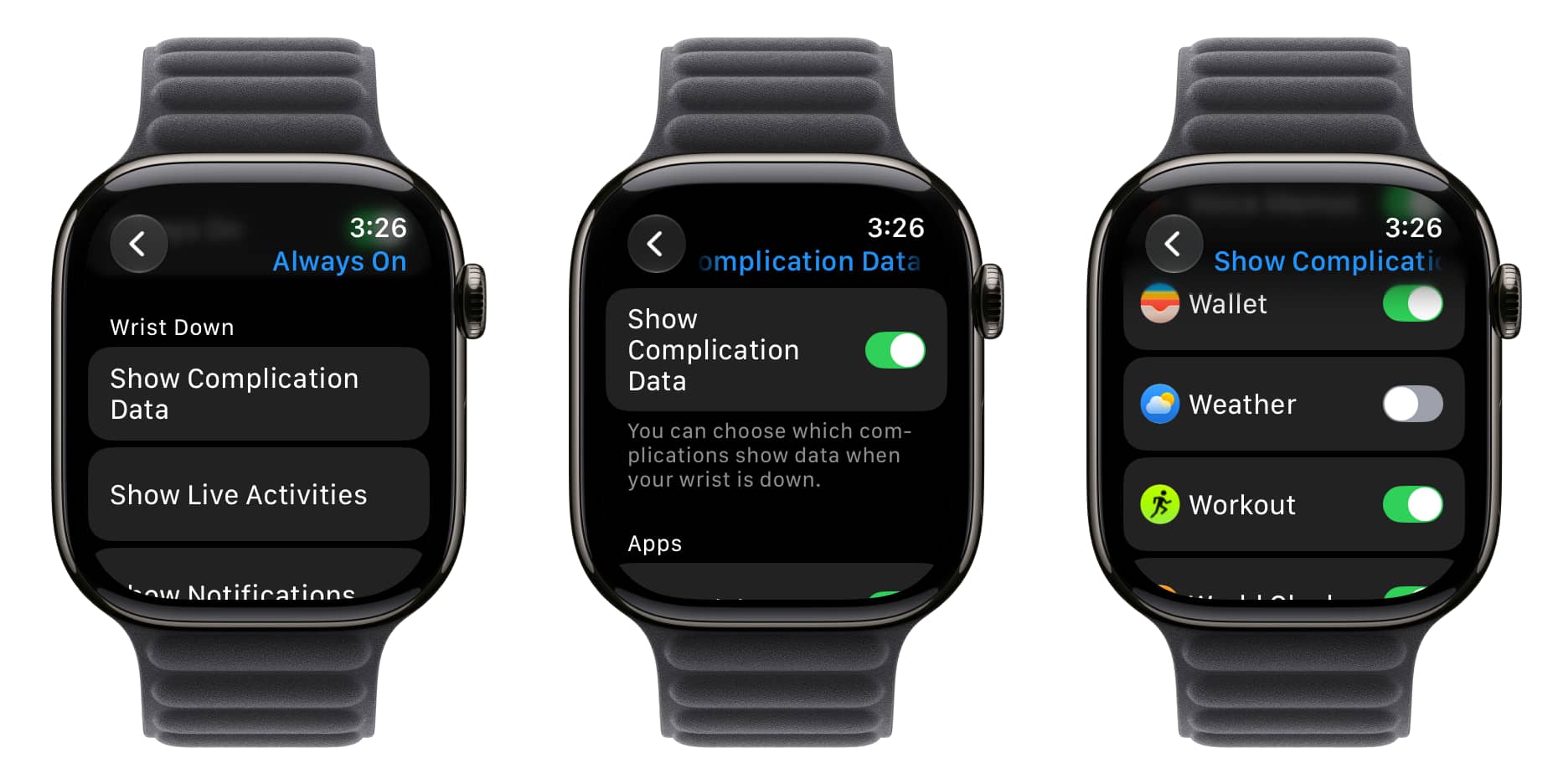
Choose what appears when your wrist is down
If you prefer to keep Always On enabled, go to Settings → Display & Brightness → Always On. Under Wrist Down, open Show Complication Data, Live Activities, Notifications, or Apps. You can turn off an entire category or restrict individual apps within it.
For example, turning off Weather under complication data leaves its complication on the watch face but replaces the temperature with a dash while your wrist is down. The temperature appears again when you raise your wrist or wake the display. Similarly, hiding an app’s notifications from Always On does not prevent them from appearing when the watch is fully awake.
Apple says the time and complications on the Always On display generally update once a minute. Live-data complications such as Compass and Noise are not active there, while Stopwatch and Timer complications round their displayed information to the next minute. On newer models, including Series 10 and Ultra 3, some elements can update once a second. Calendar, Weather and third-party complications update once a minute or as needed.