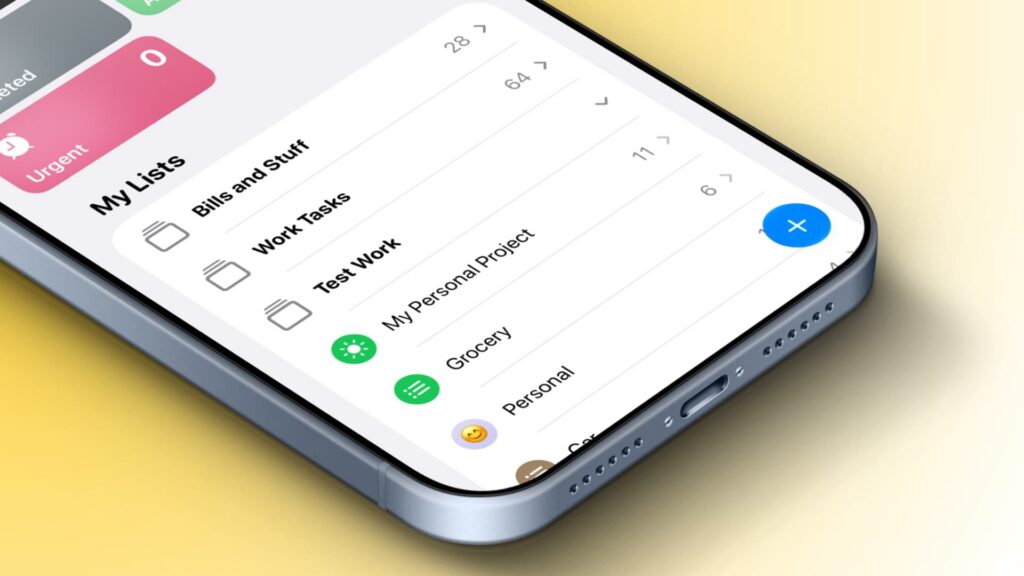
Apple Reminders lets you put several lists into a group and view their tasks together. The steps below reflect a guide published on November 11, 2026 (November 12 in UTC+8); they do not indicate when the feature was introduced.
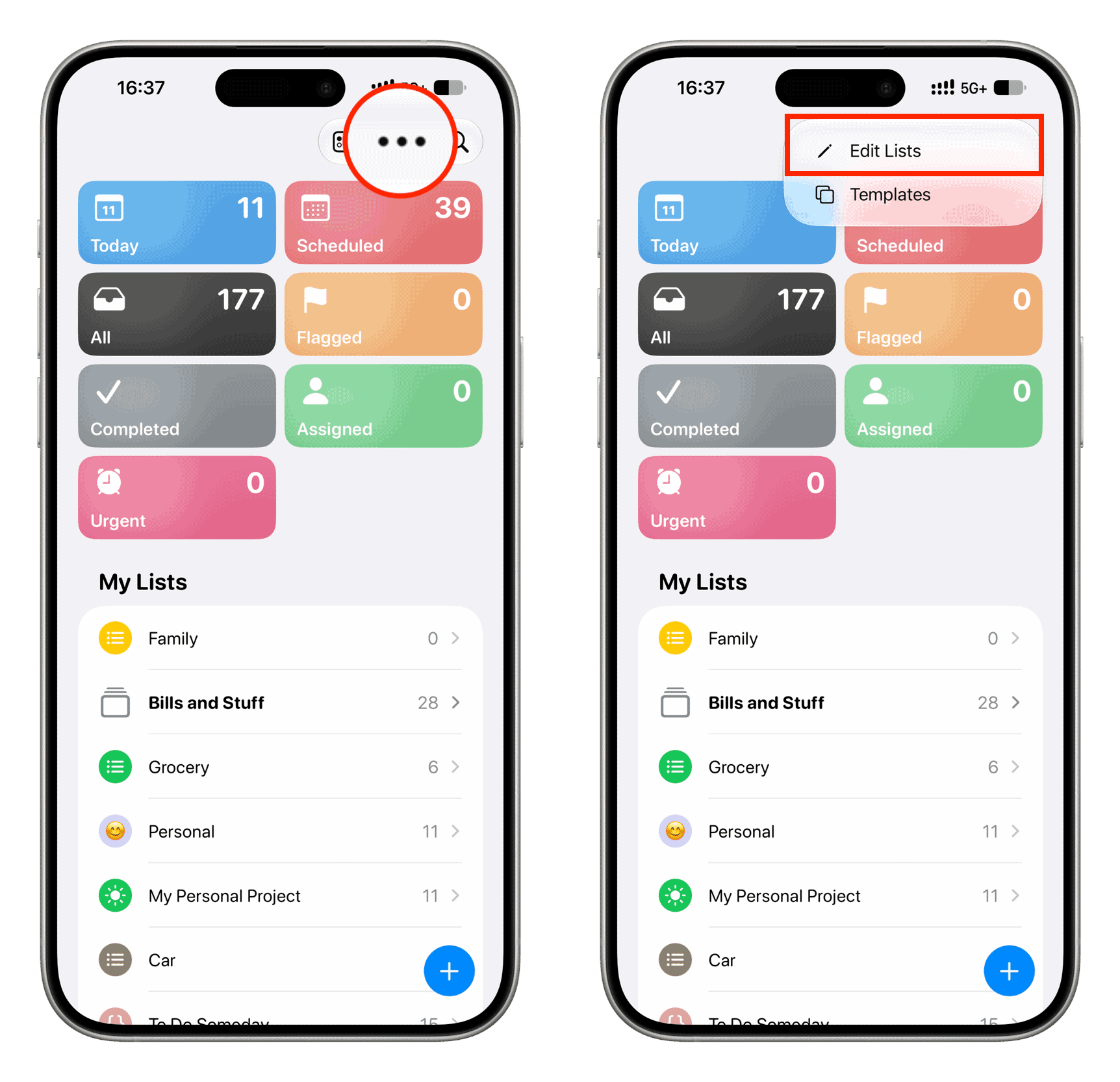
Create a group on iPhone or iPad
- Open Reminders, tap the three-dot menu, and select Edit Lists.
- Tap the new folder icon and name the group.
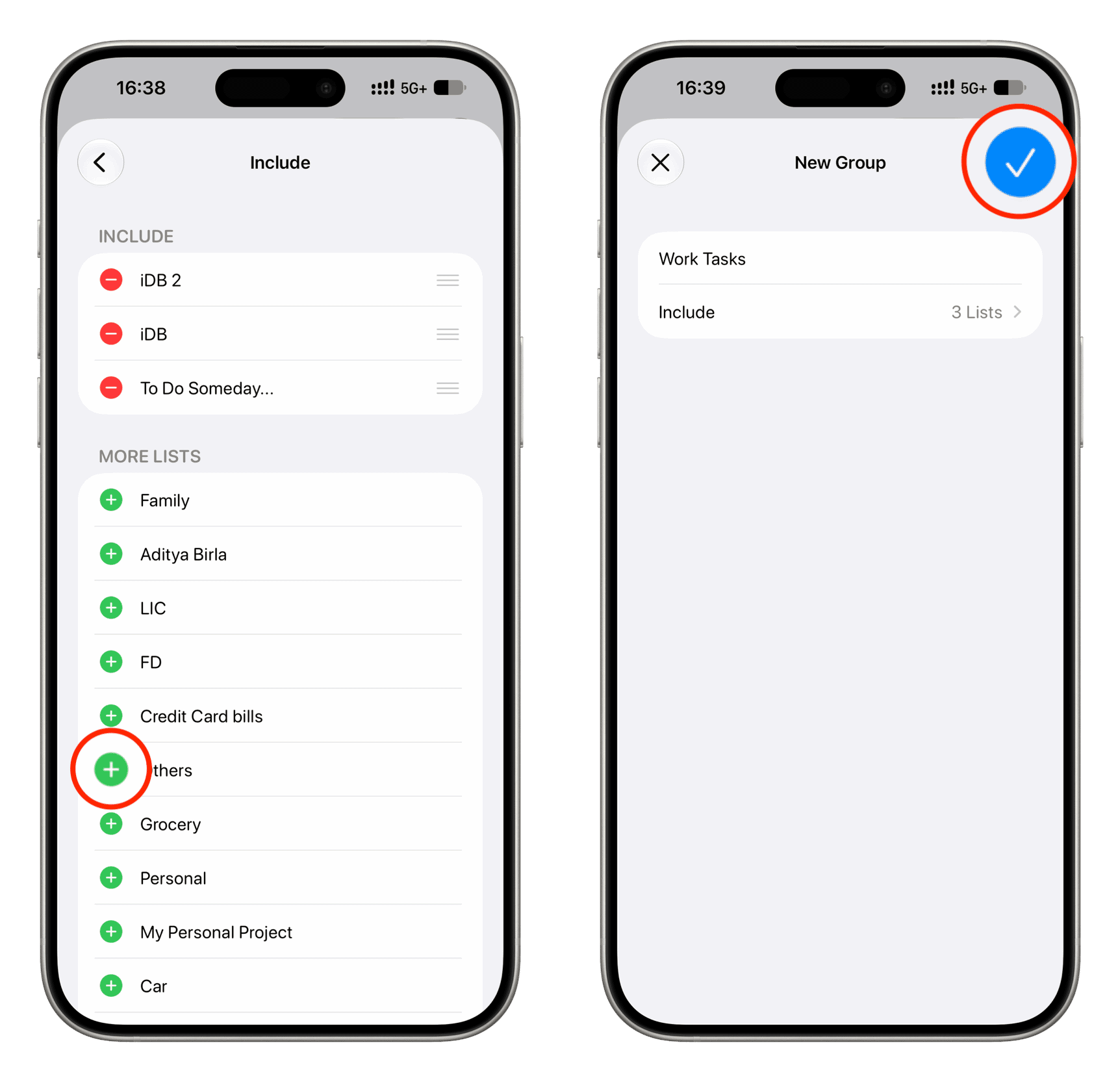
- Tap Include, then tap the green plus button beside each list you want to add.
- Go back and tap the checkmark on both screens to save.
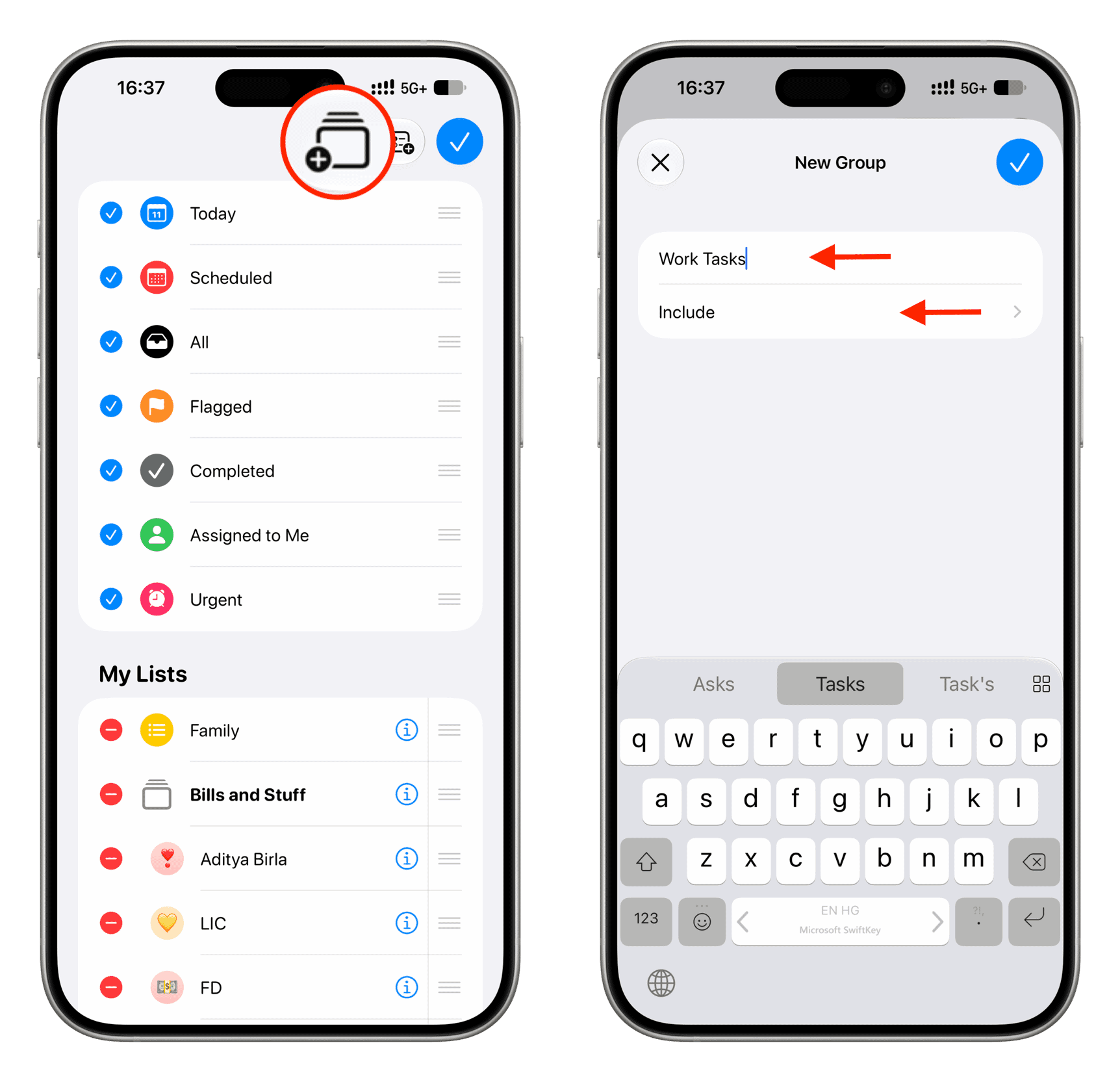
You can also drag one list onto another to create a group, then name it. This drag-and-drop method works on iPhone, iPad, and Mac, but adds only one list at a time.
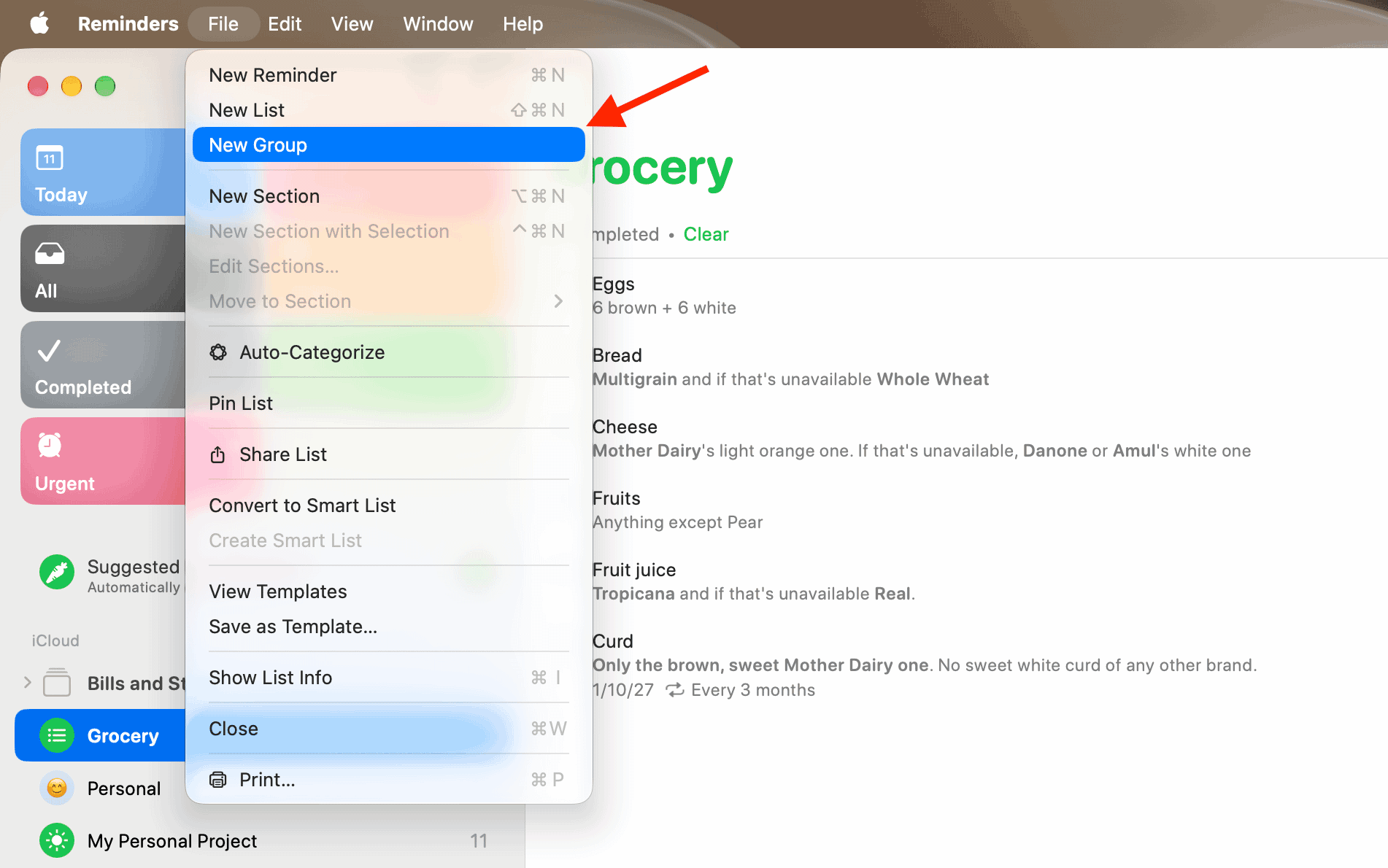
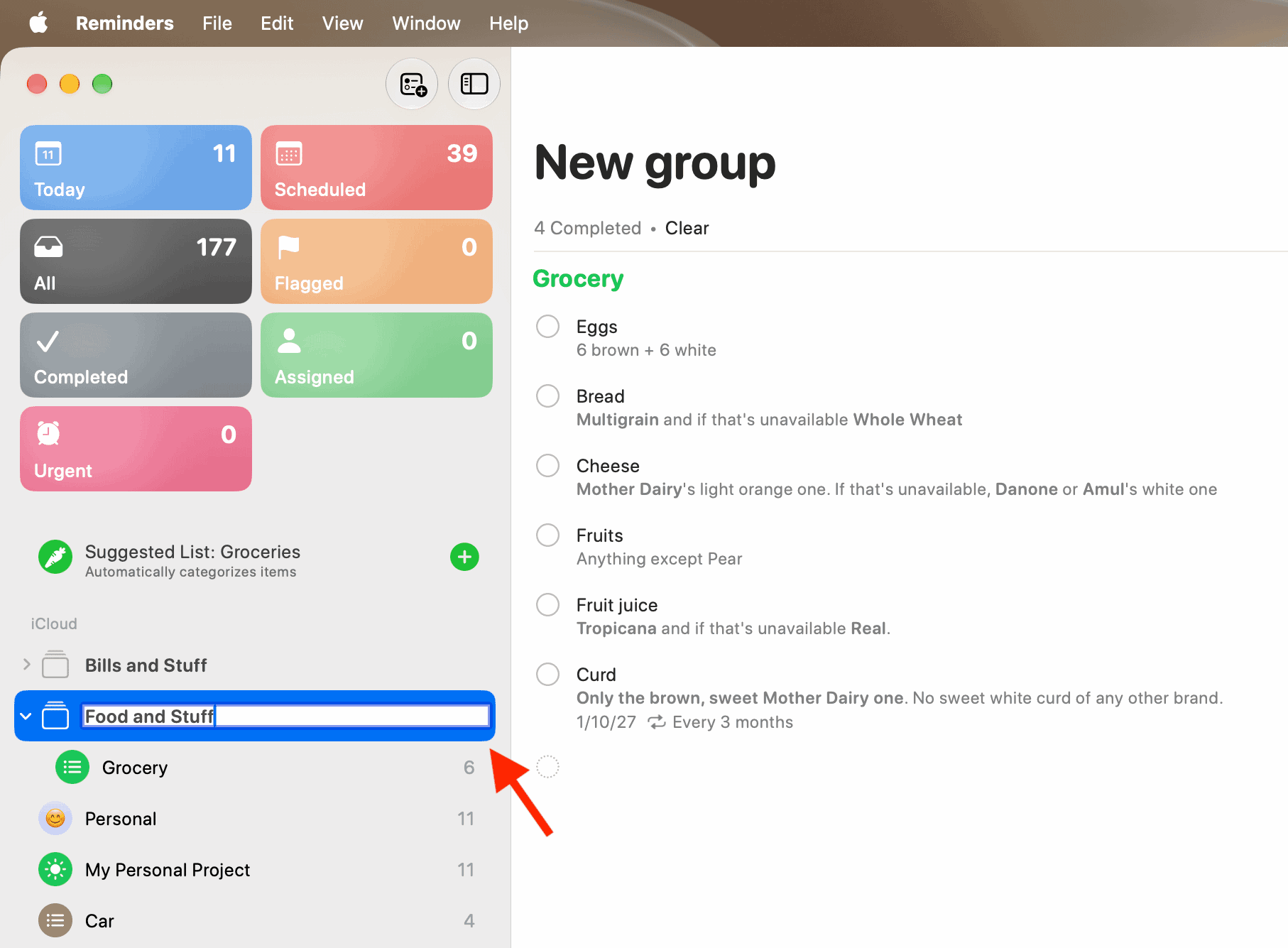
Create a group on Mac
In Reminders, select a list, then choose File → New Group. Name the group and press Return. To add other lists, Control-click or right-click each one and add it to the group.
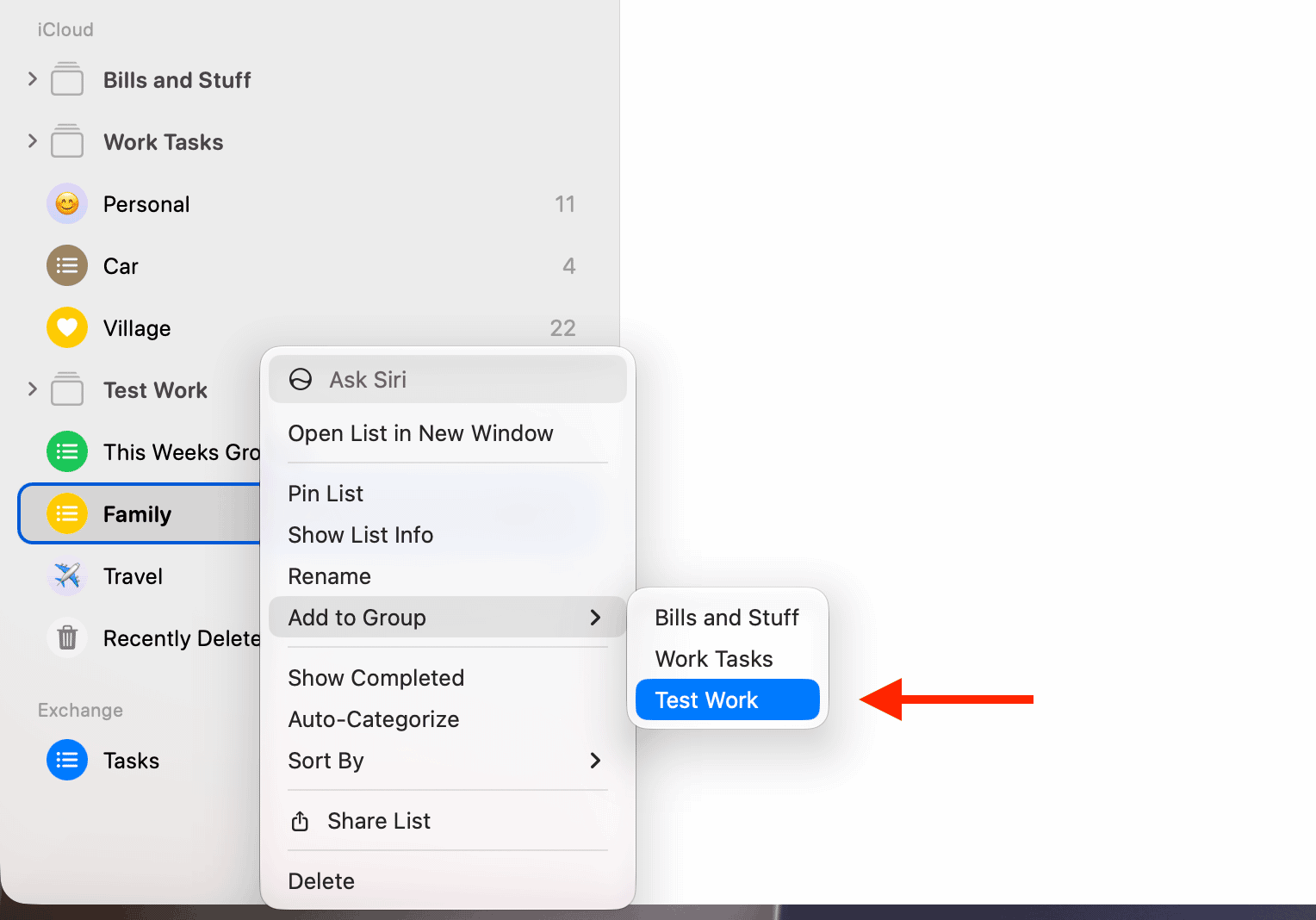
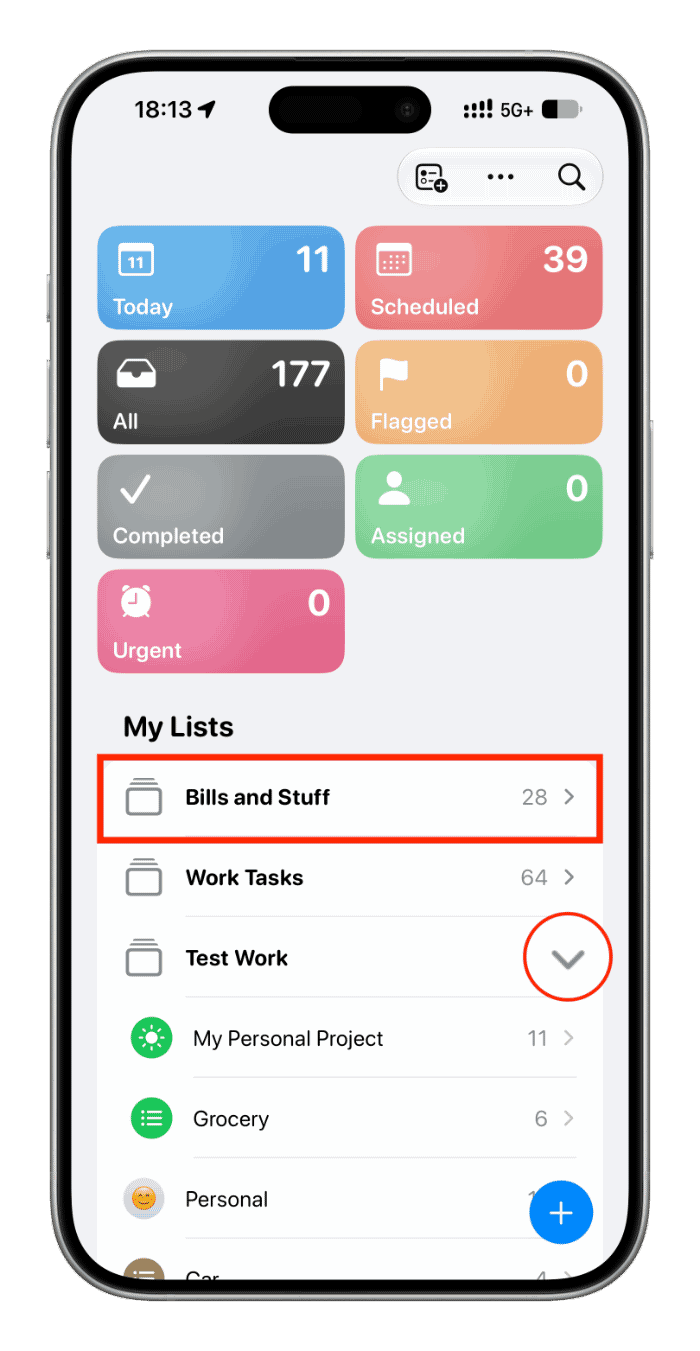
Select a group to see tasks from all its lists in one scrollable view. To see the lists separately, select the arrow beside the group and open an individual list. Groups sync through iCloud across devices signed in to the same Apple Account.
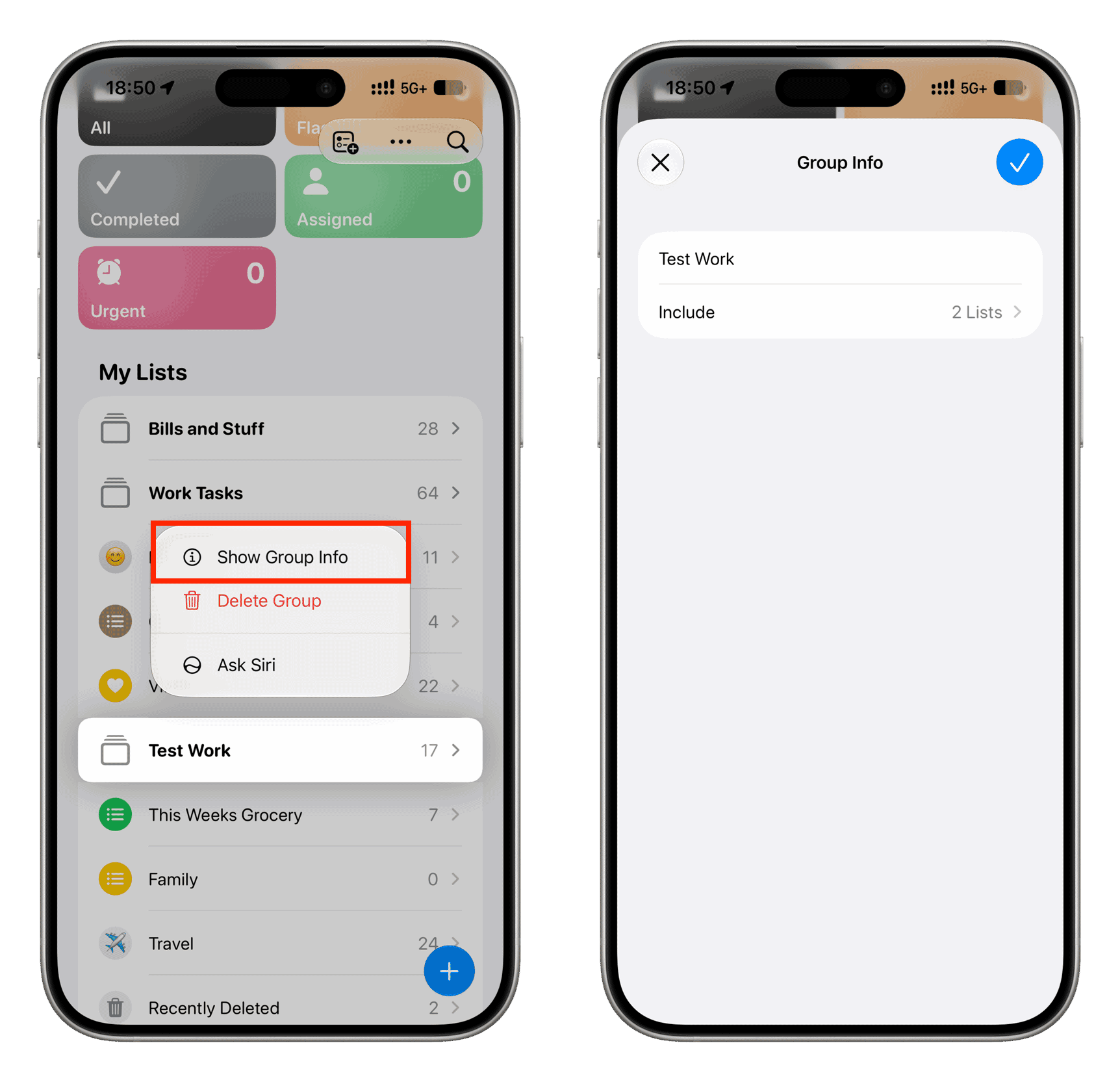
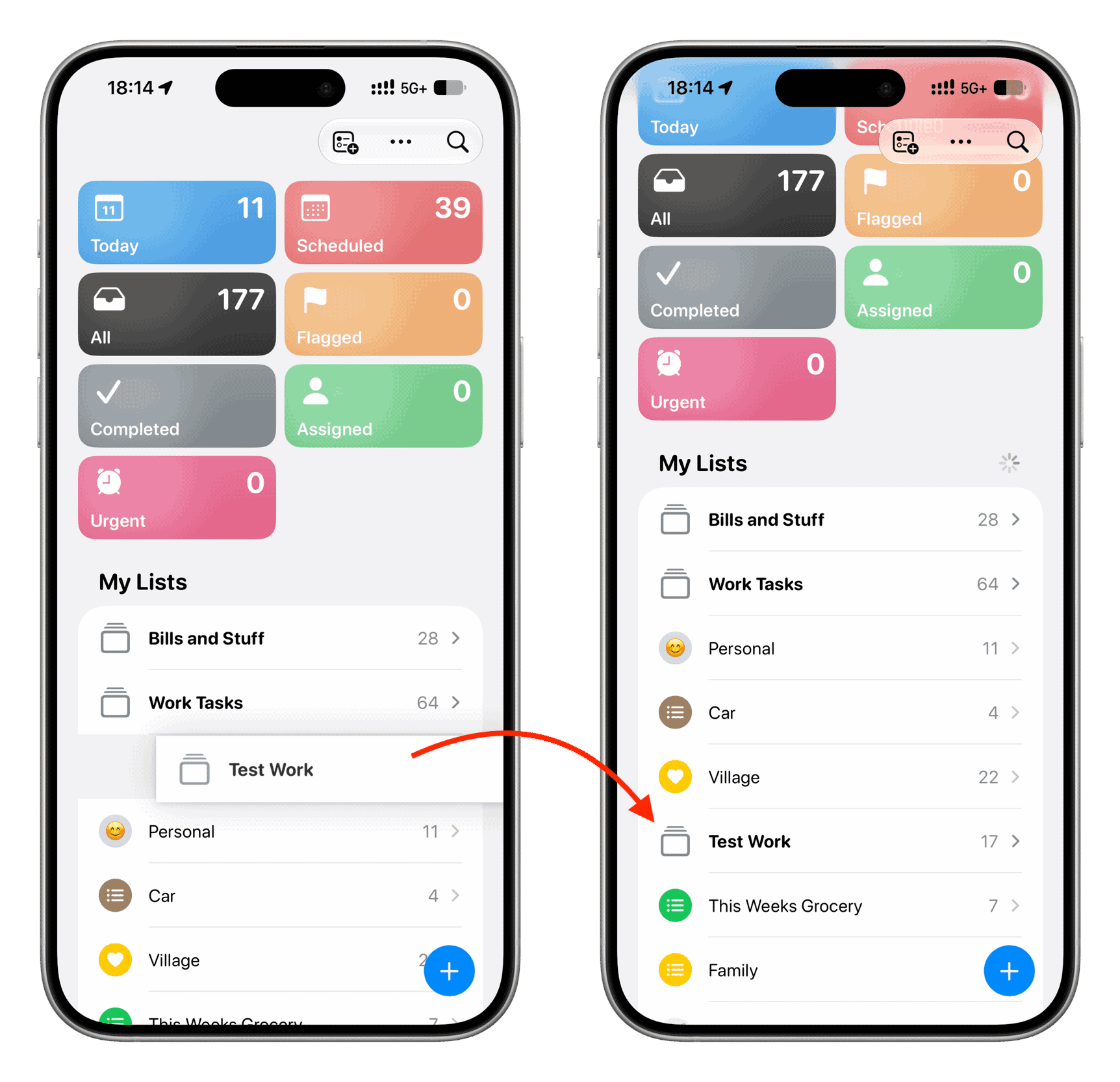
To change a group on iPhone or iPad, touch and hold it and choose Show Group Info. You can rename it or use Include to add or remove lists, then tap the checkmark to save. You can also drag a group to change its position.
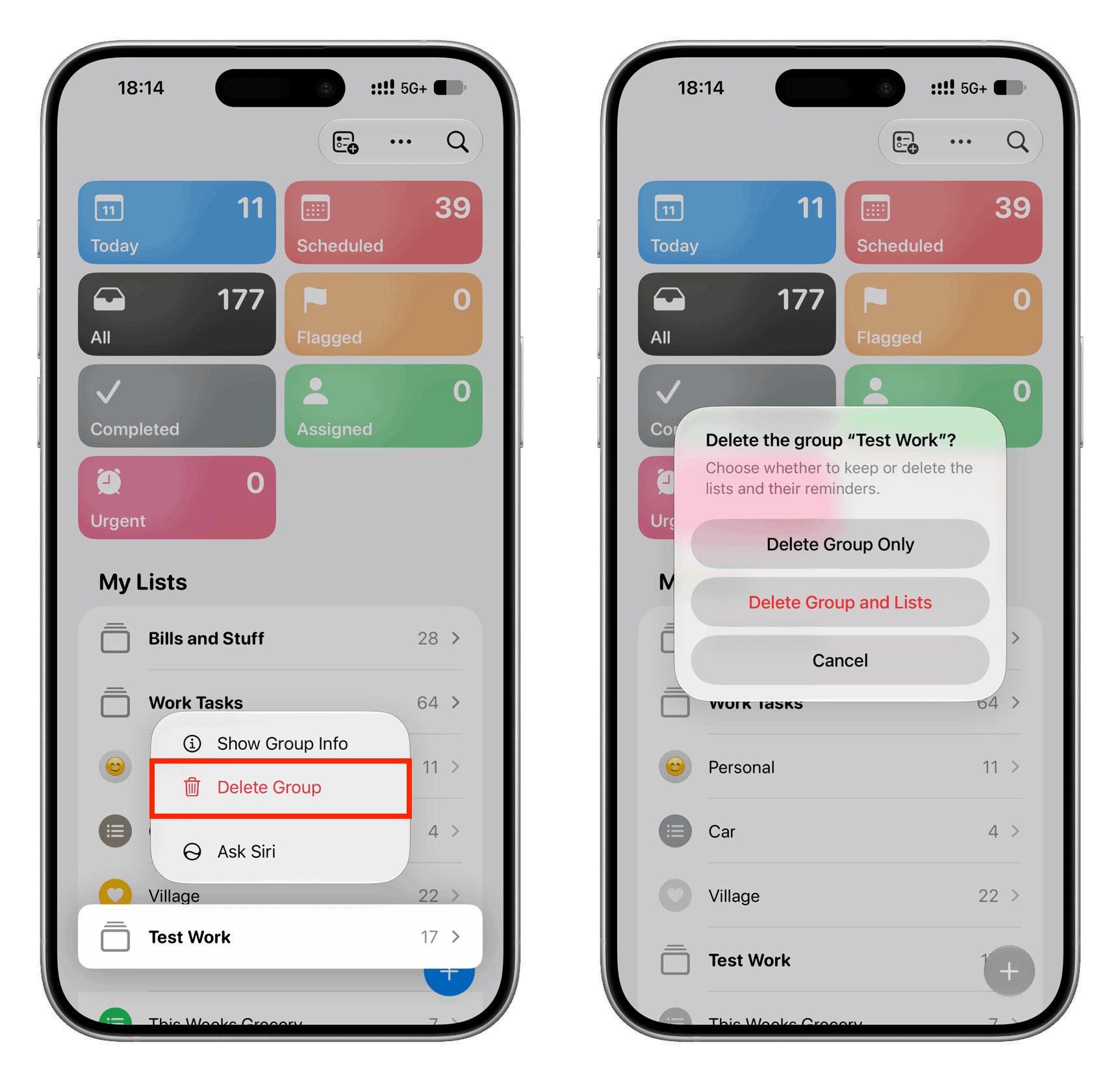
To delete a group, touch and hold it on iPhone or iPad, or right-click it on Mac, and choose Delete. If it contains lists with tasks, check the confirmation carefully: Reminders offers a choice between deleting only the group while keeping its lists and deleting the group along with those lists.