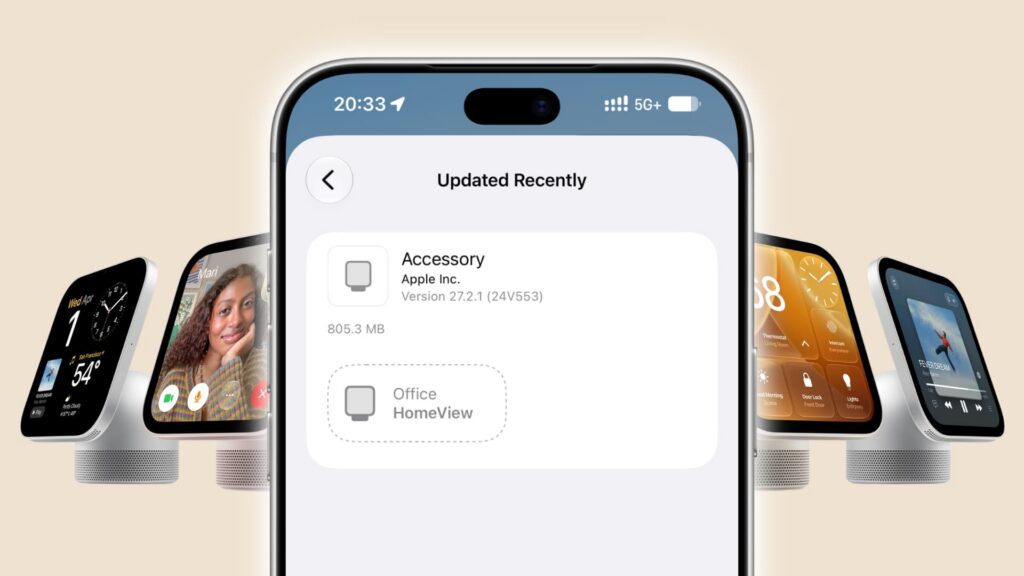
A guide published on November 20, 2026, describes how to check HomeView’s software version and install an available update. Its author says version 27.2.1 resolved problems they had encountered, including Siri failing to set a timer or alarm. That is the author’s experience, not a guarantee that the update fixes every Siri issue.
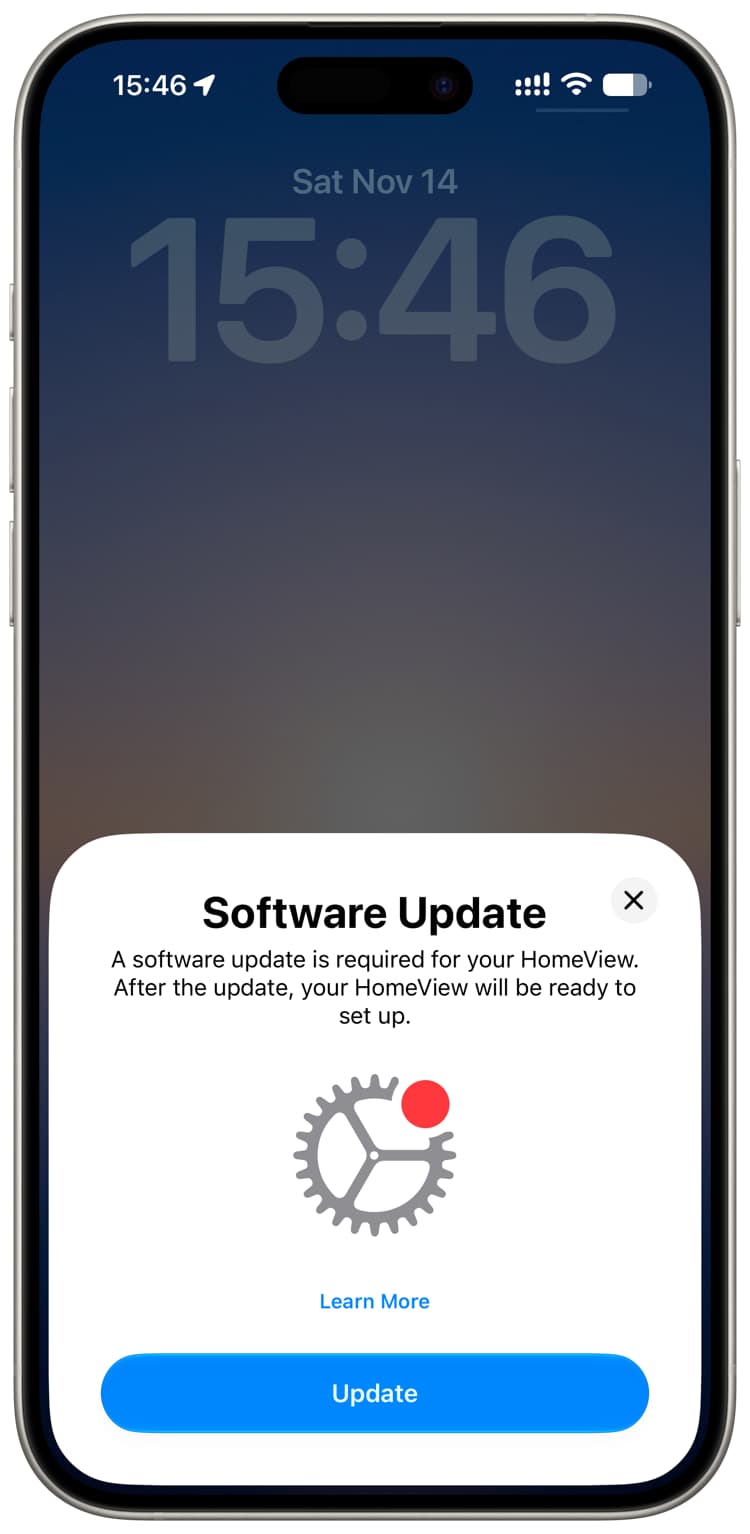
Check the installed version
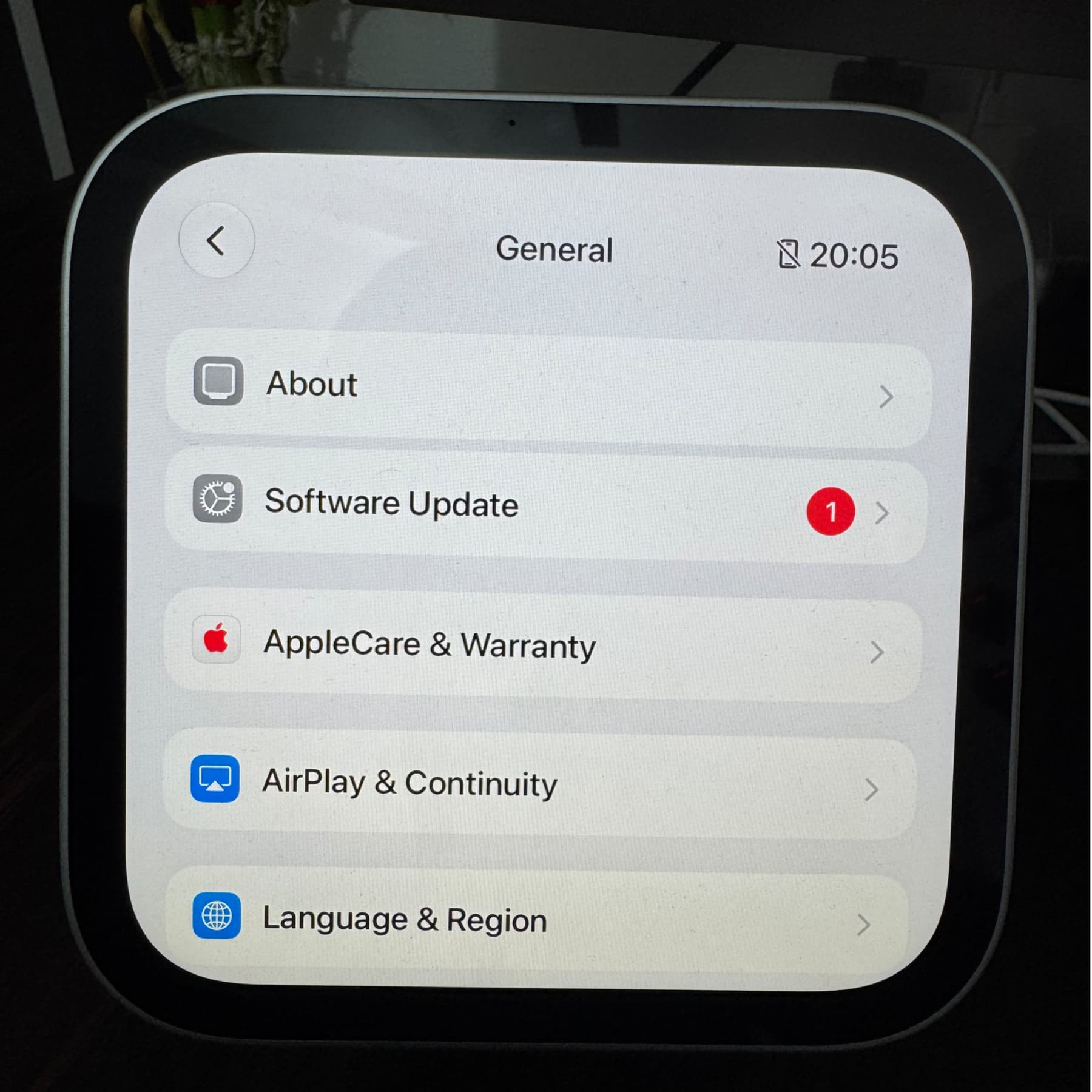
On HomeView, open Settings → General → About and look for the version number. Alternatively, in the Home app, touch and hold the HomeView tile, choose Accessory Settings, and scroll to the version number.
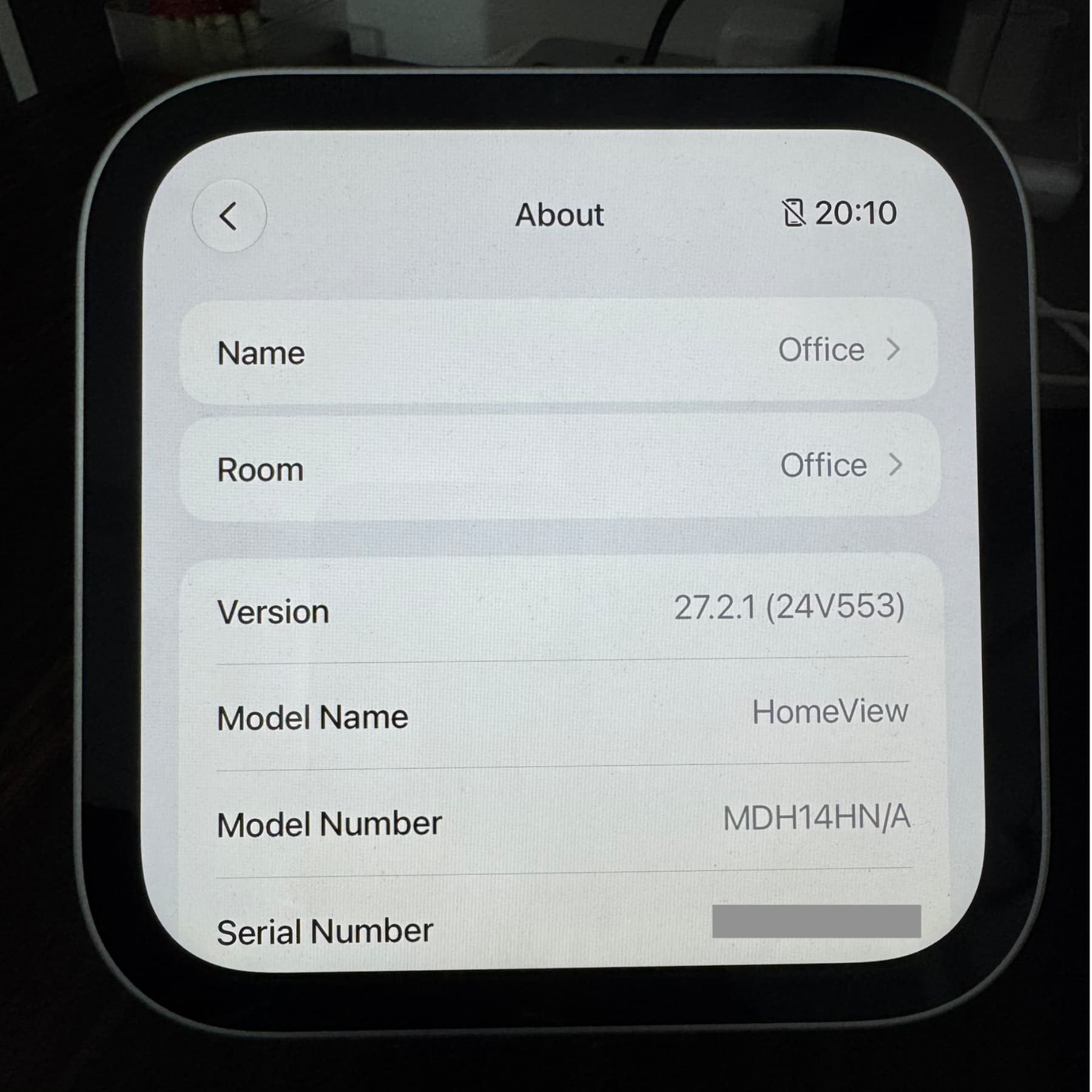
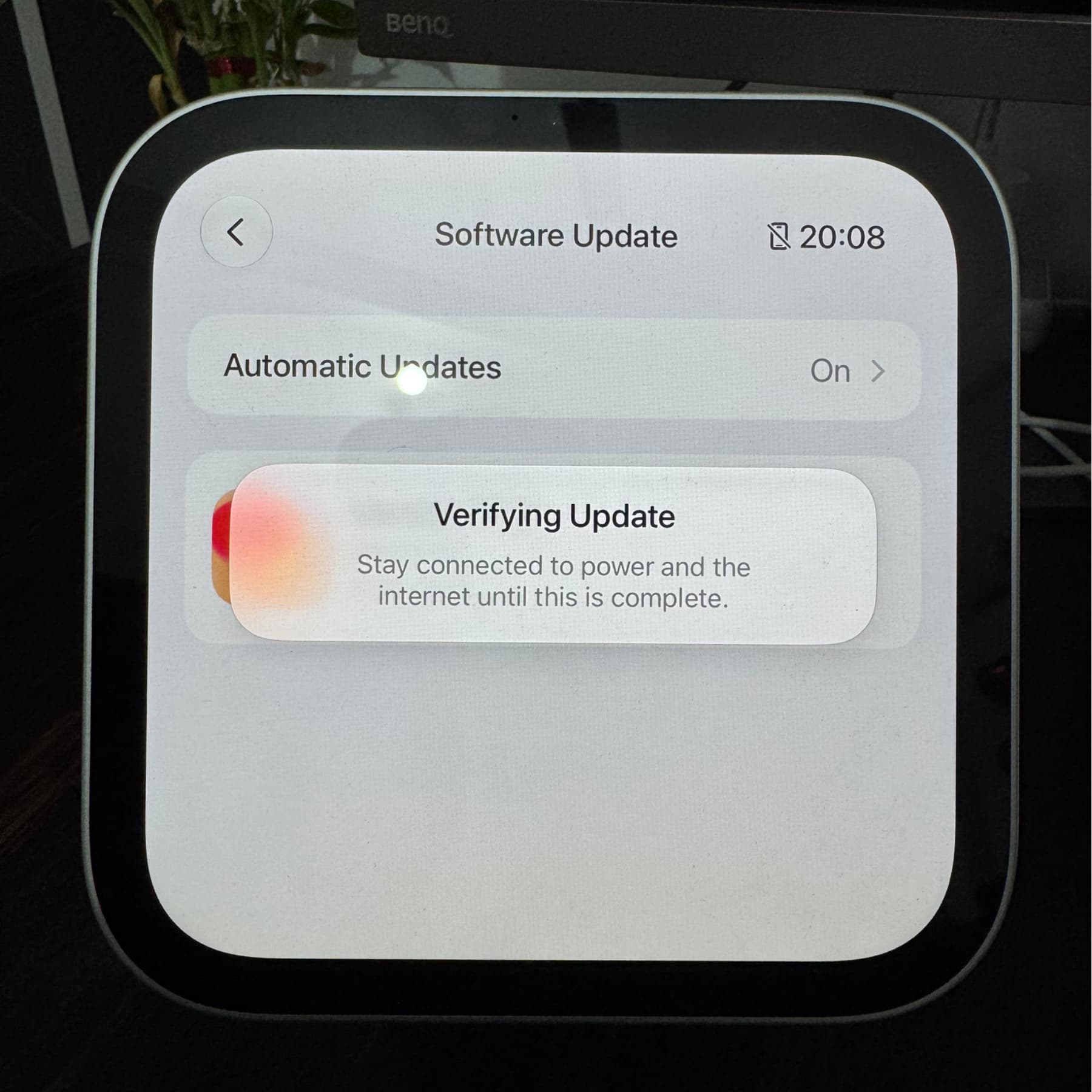
Install an update
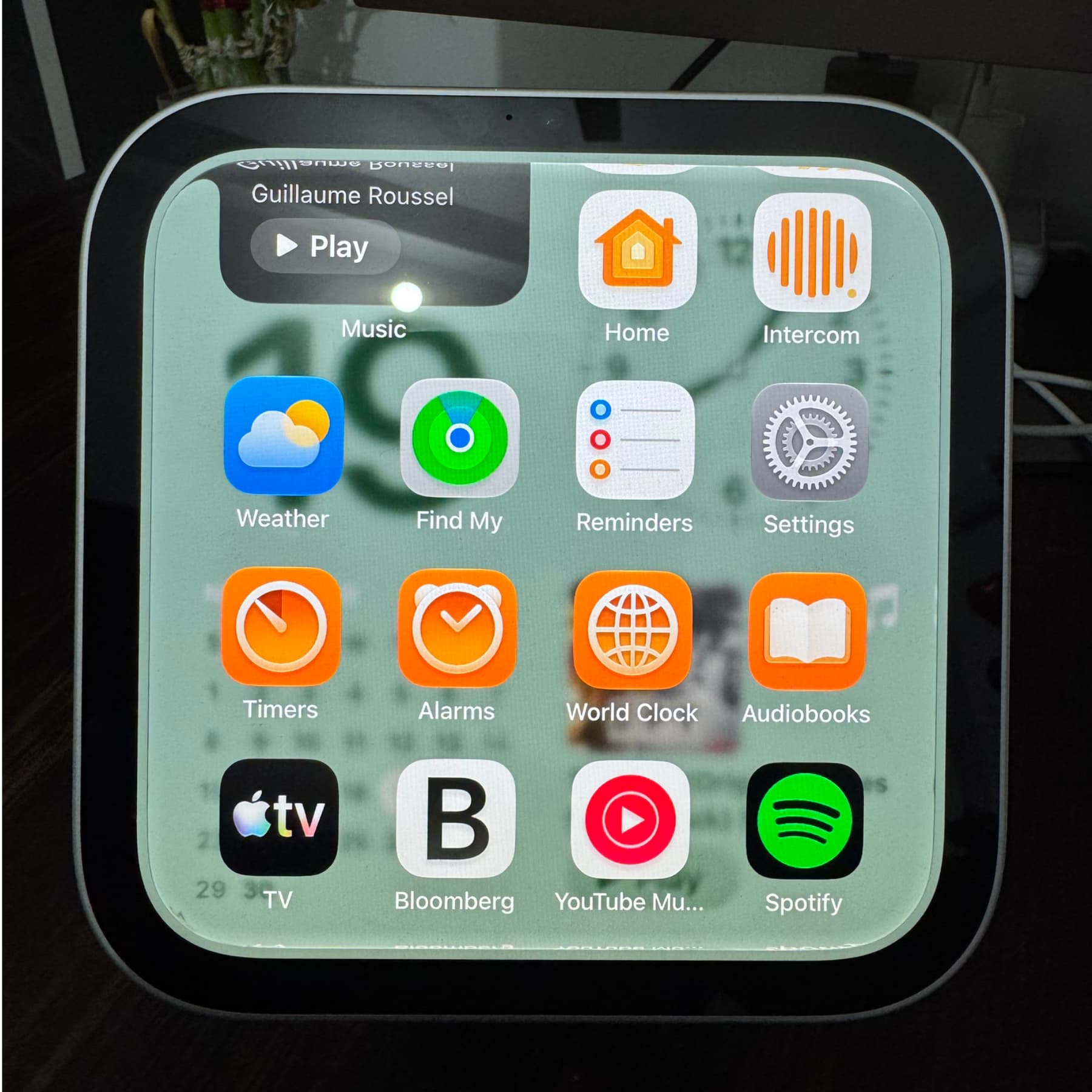
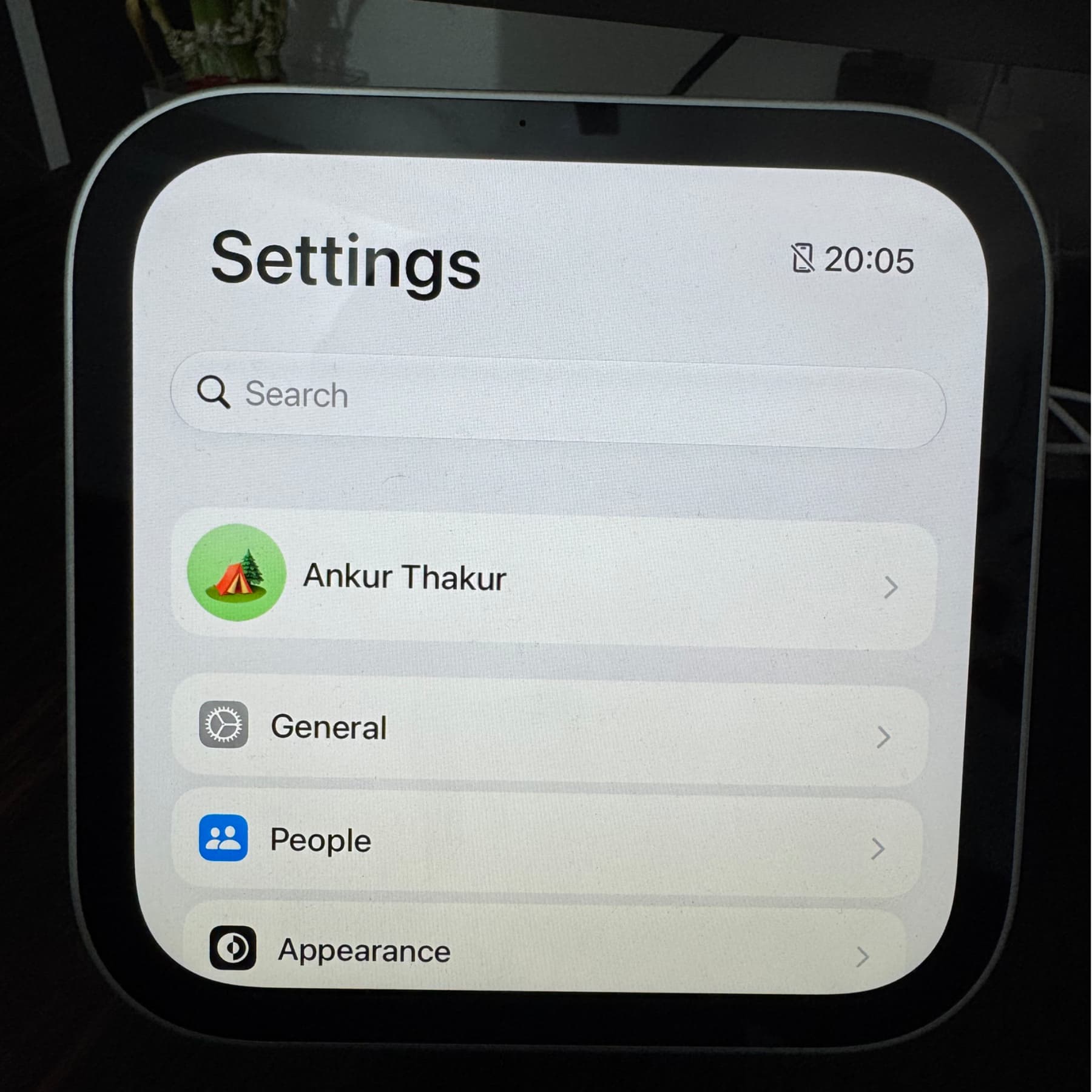
- Swipe up on HomeView’s clock face and open Settings.
- Go to General → Software Update.
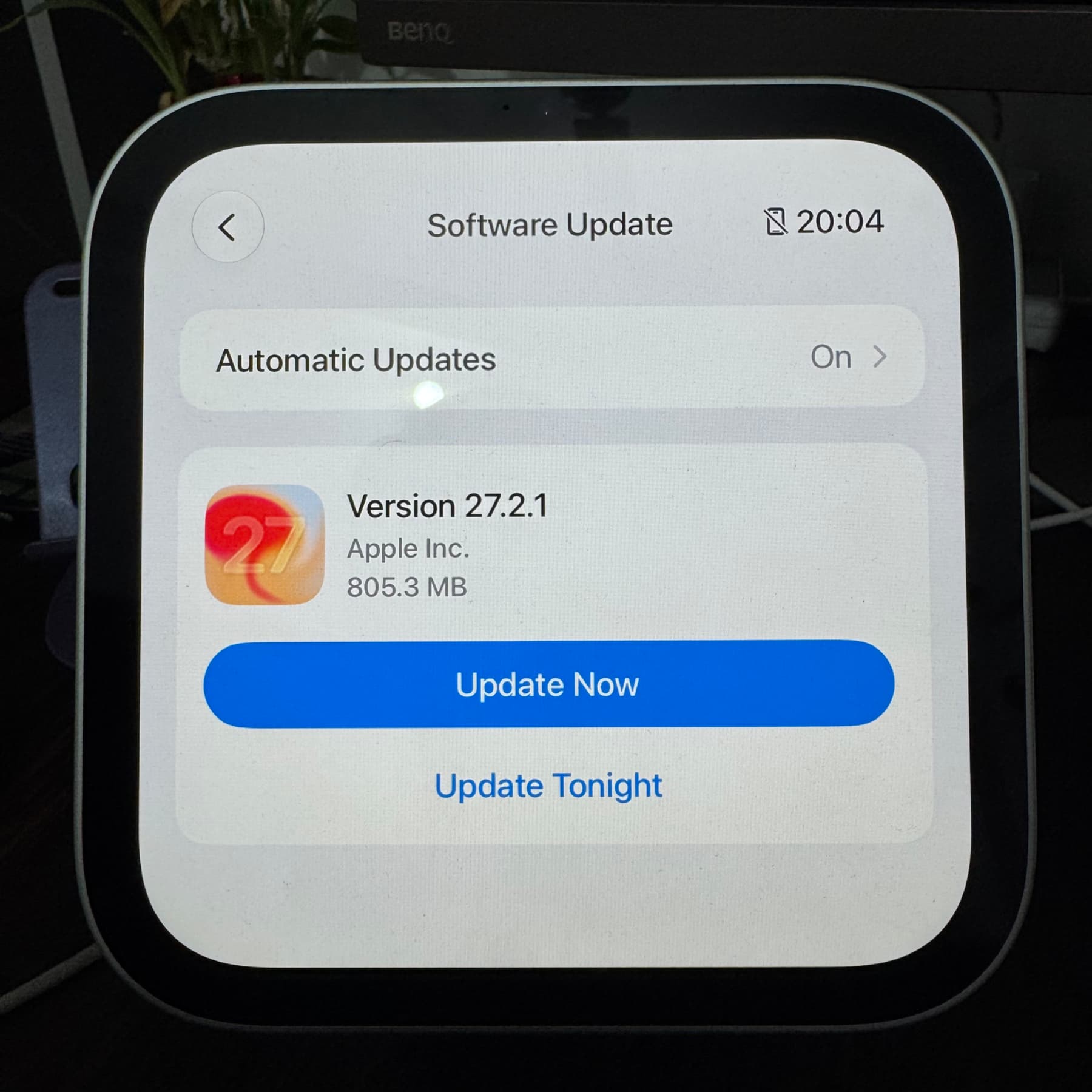
- If an update appears, tap Update Now or Update Tonight. If none is available, the screen says “HomeView is up to date.”
HomeView downloads and prepares the update before installing it. Once installation is complete, it restarts and displays its clock face. After the download, Later schedules installation for that night; Update Now installs it immediately, while Cancel Update aborts it.
Keep HomeView connected to reliable power and Wi-Fi during installation. The guide warns that a power interruption could leave the device needing restoration with a Mac. It also says an update may be offered during initial setup.
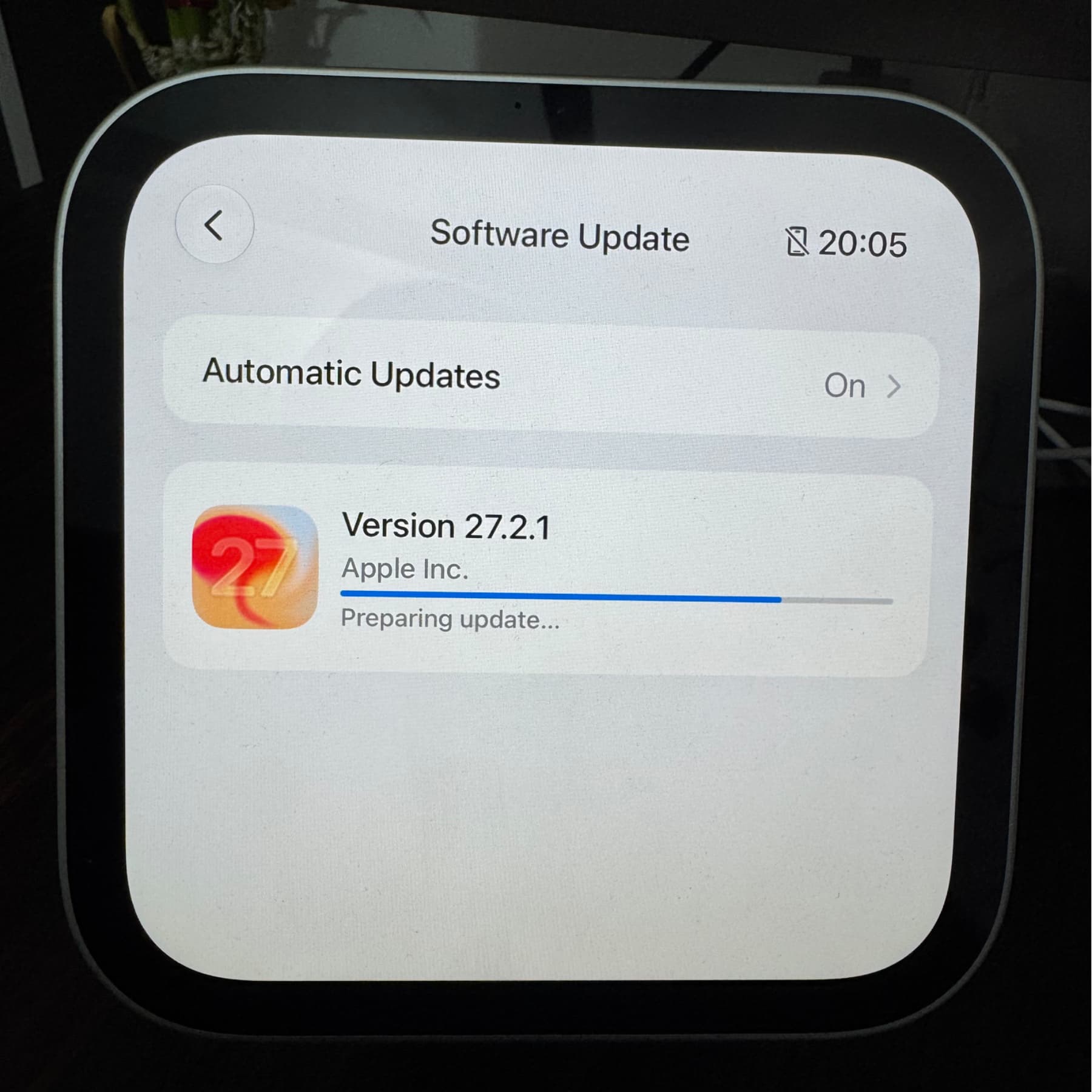
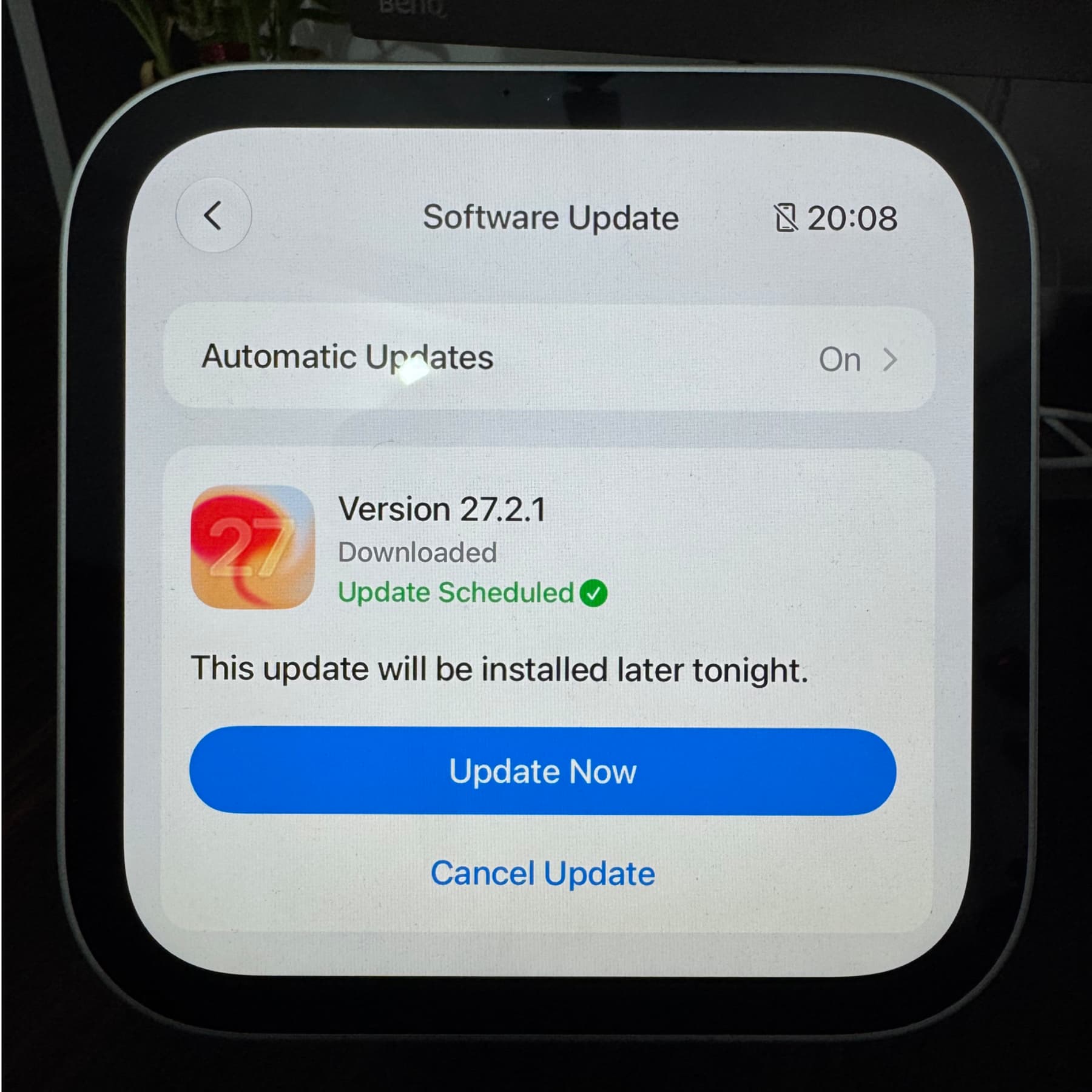
Automatic updates and the Home app
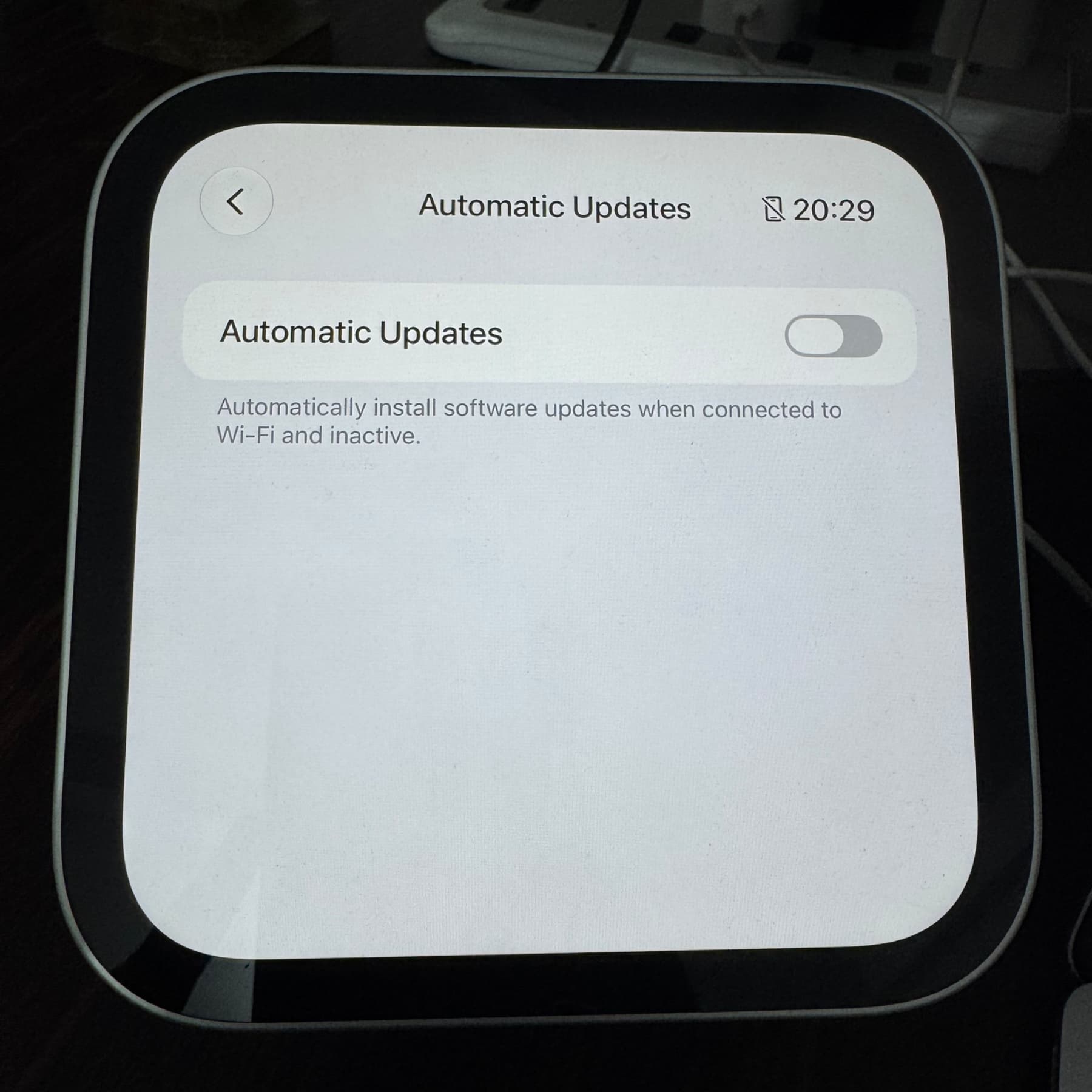
According to the guide, automatic updates are enabled by default and generally run when HomeView is connected to Wi-Fi and inactive. To turn them off, go to Settings → General → Software Update → Automatic Updates.
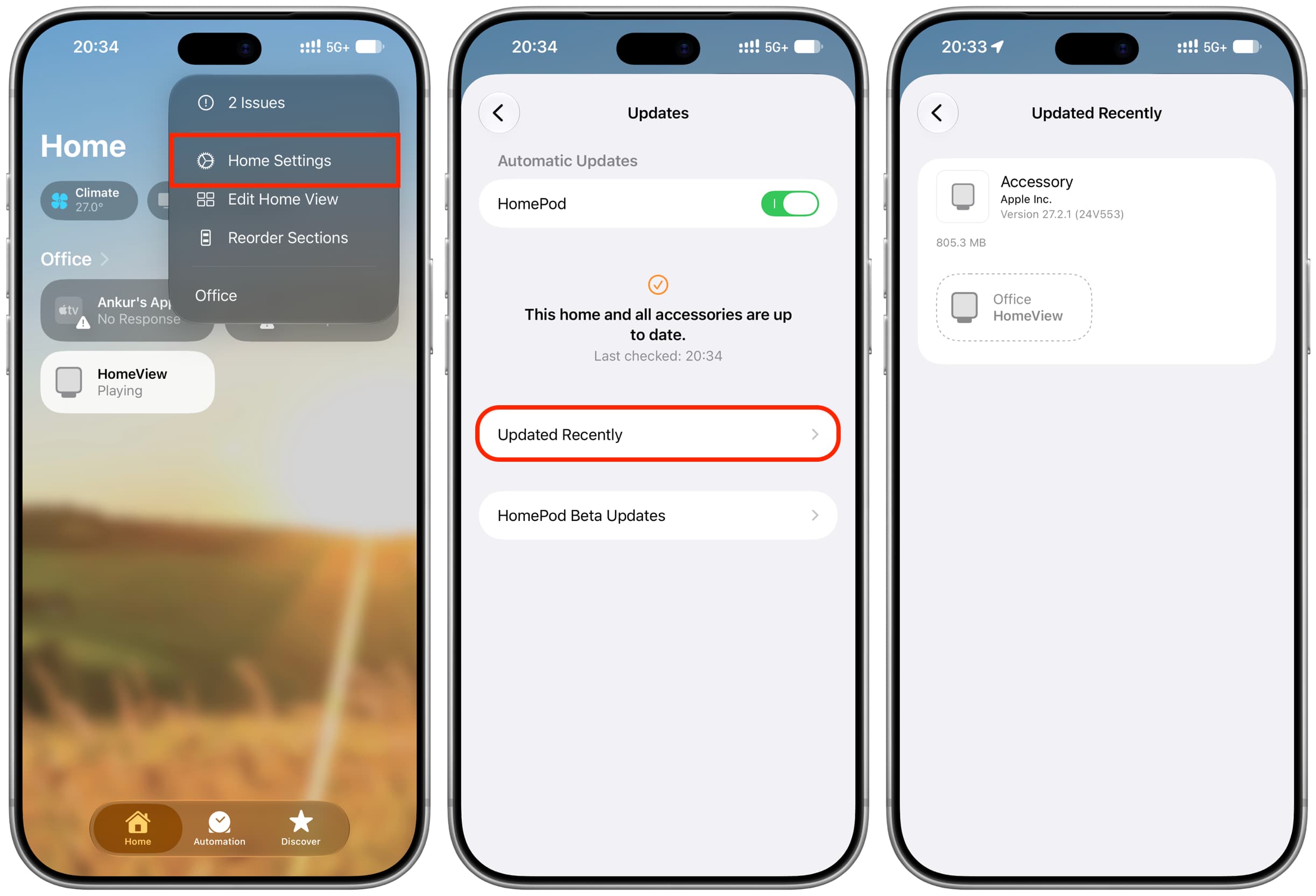
You can also check for an update in the Home app’s Software Update screen. On an iPhone or iPad, open the Home app and go to More (three dots) → Home Settings → Software Update → Updated Recently to see the name and version of a recently updated HomeView. The guide says HomeView beta updates were not available at the time of publication.