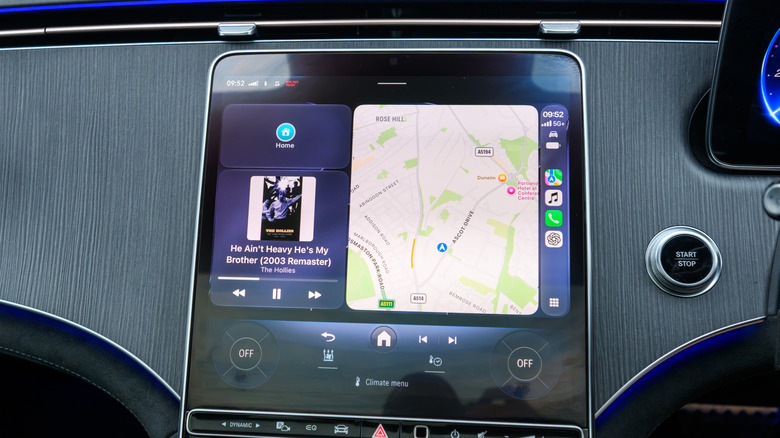
When Apple Maps is guiding you through CarPlay, your Apple Watch can tap your wrist as a turn approaches. The taps coincide with CarPlay’s spoken directions and on-screen prompts. Different vibration patterns can distinguish a left turn from a right one without requiring a glance at the display.
Check the turn alert settings
CarPlay turn alerts are usually on after Apple Watch setup. To check or change the setting:
- Open the Watch app on your iPhone.
- On the My Watch tab, select Apps, then Maps.
- Turn Driving with CarPlay on or off.
Maps has separate controls for driving without CarPlay, walking and cycling. You can turn off wrist taps in the car but keep them on for bike rides, when checking a screen may be awkward.
Get directions without CarPlay
An Apple Watch cannot run CarPlay on its own. Apple Maps on the watch can, however, provide driving directions with wrist taps, audio cues and on-screen guidance. If you leave your iPhone behind, you’ll need to download offline maps beforehand or use a watch with an active cellular plan. Many carriers charge extra for smartwatch coverage.
Google Maps also runs on Apple Watch, but its directions require an iPhone. The watchOS version of Google Maps does not offer offline maps.